

Appearance
Assigning Managers
Managers are the trusted users who help you oversee your Spaces and courses. FluentCommunity's Manager settings let you assign these roles, control exactly what each person can do, and edit or remove them as your team changes.
Use Case: You've brought on a community volunteer to keep discussions healthy in one Space. Assign them the Space Moderator role so they can edit or remove inappropriate posts without gaining full control over your community settings.
✨ Note: Only the WordPress Admin can assign the Manager role for the community.
Manager Roles and Permissions
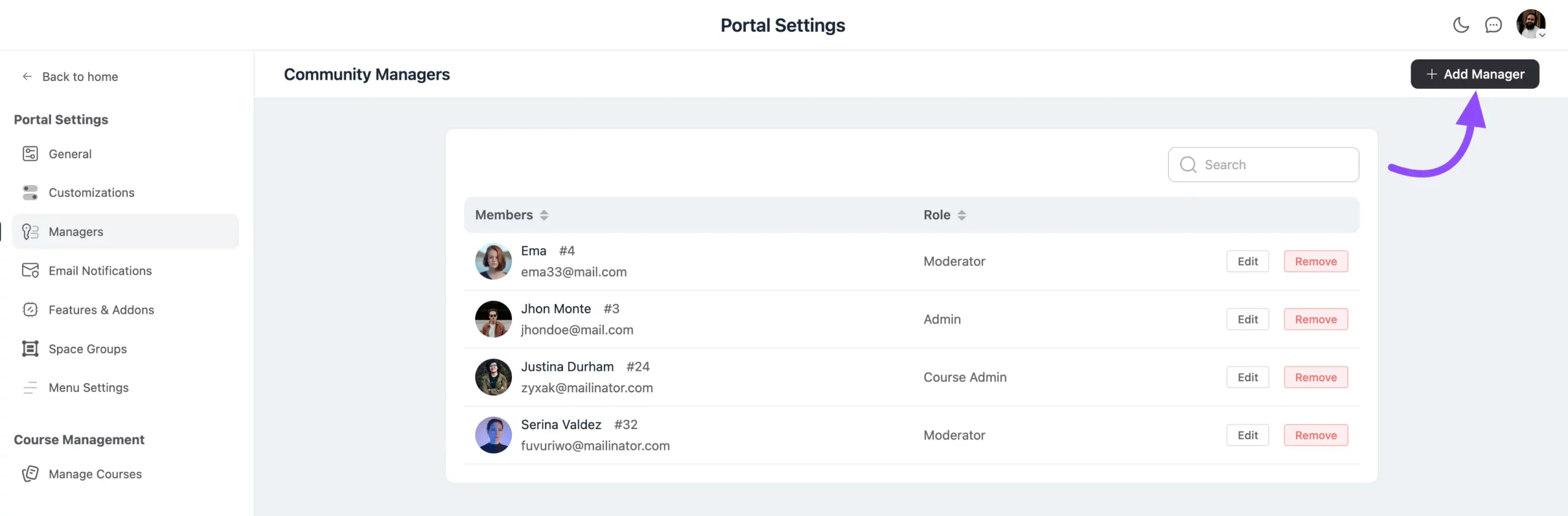
Open FluentCommunity > Settings, then click Managers in the left sidebar. You'll find four Manager roles, each with its own permissions:
- Space Admin: Full access to manage Space settings, add or remove members, and control content management.
- Space Moderator: Monitors interactions and content within a Space, with the ability to edit or delete inappropriate posts and comments.
- Course Admin: Manages course settings and content, oversees enrollments, and monitors user engagement in courses.
- Course Creator: Designs and develops course materials, controls course structure and learning objectives, sets enrollment options, and manages access permissions for courses.
How to Assign a Manager
- On the Managers page, click the Add Manager button.
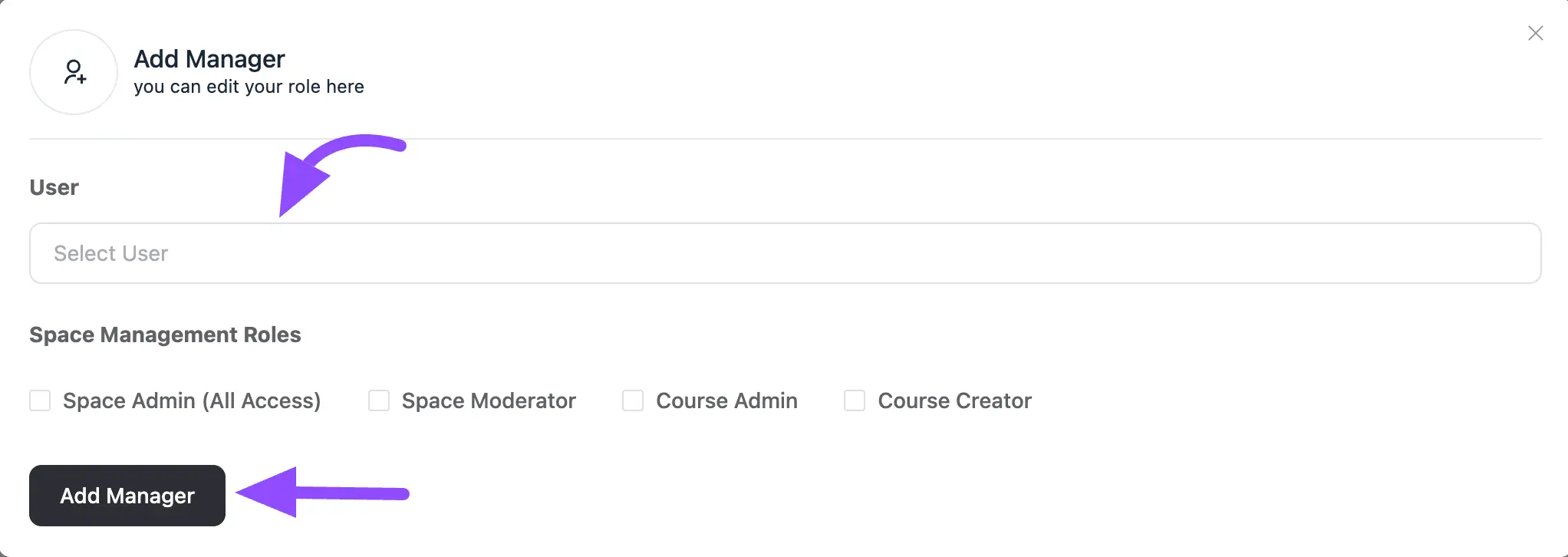
- In the popup, select the WordPress user you want to assign from the Users dropdown.
- Choose the appropriate Community Management Role for that user.
How to Manage Existing Managers
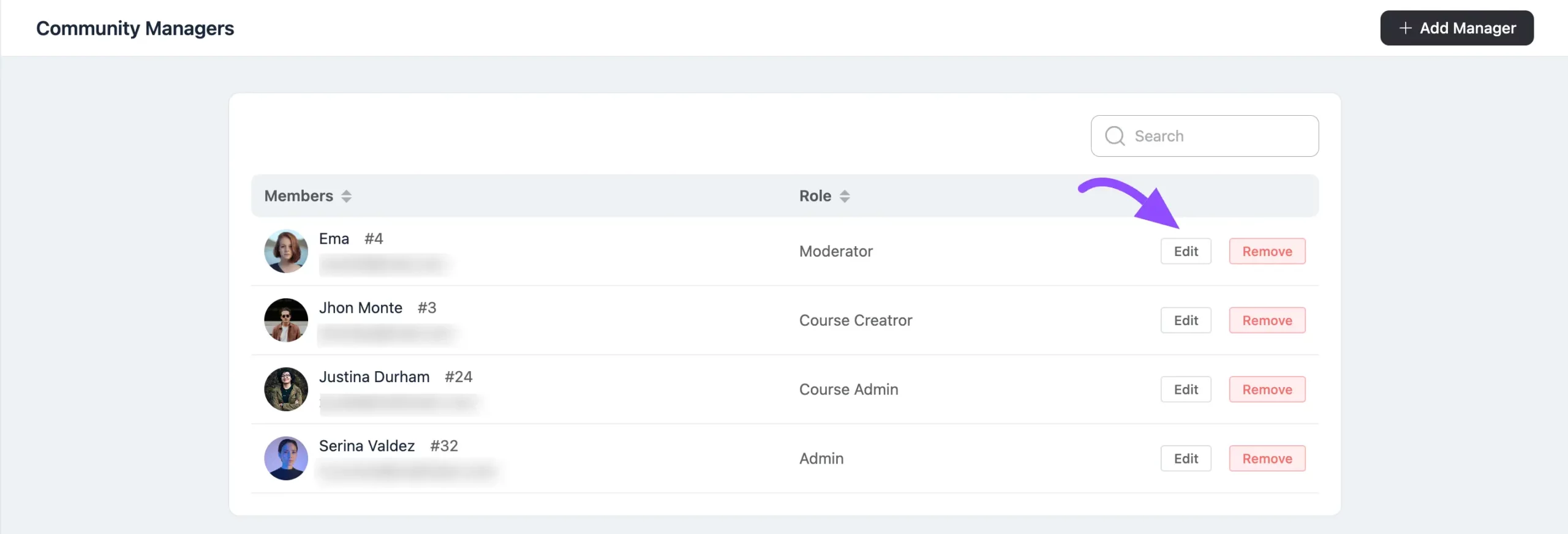
- To change a role, click the Edit button next to the manager's name.
- To remove a manager, click the Delete button next to their name.
This gives you the flexibility to assign, edit, or remove managers whenever your team needs to change.