

Appearance
Managing User Profiles
A member profile is each user's personal identity page inside your community. It helps members introduce themselves, share social links, and build trust through visible activity. This guide explains how members can update their own profile and how admins can manage profiles from the back end.
Use Case: A member wants to update their bio and social links before joining active discussions, while an admin needs to verify that account and keep its access status set to Active.
How Members Edit Their Profile
Any logged-in member can quickly edit their own profile details from the community portal.
- Navigate to the FluentCommunity dashboard and click on the Member section.
- From the dropdown, select your name to access your profile page.
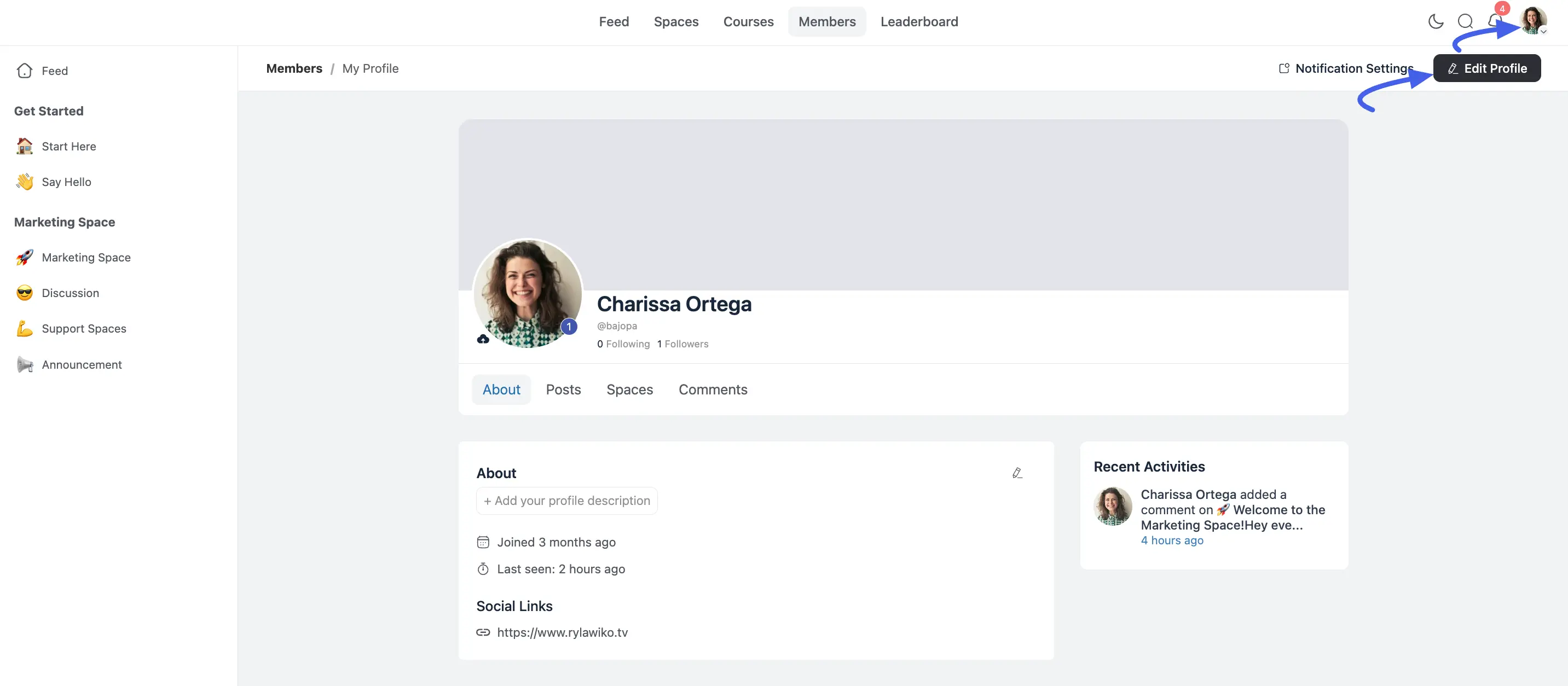
- Click the Edit Profile button.
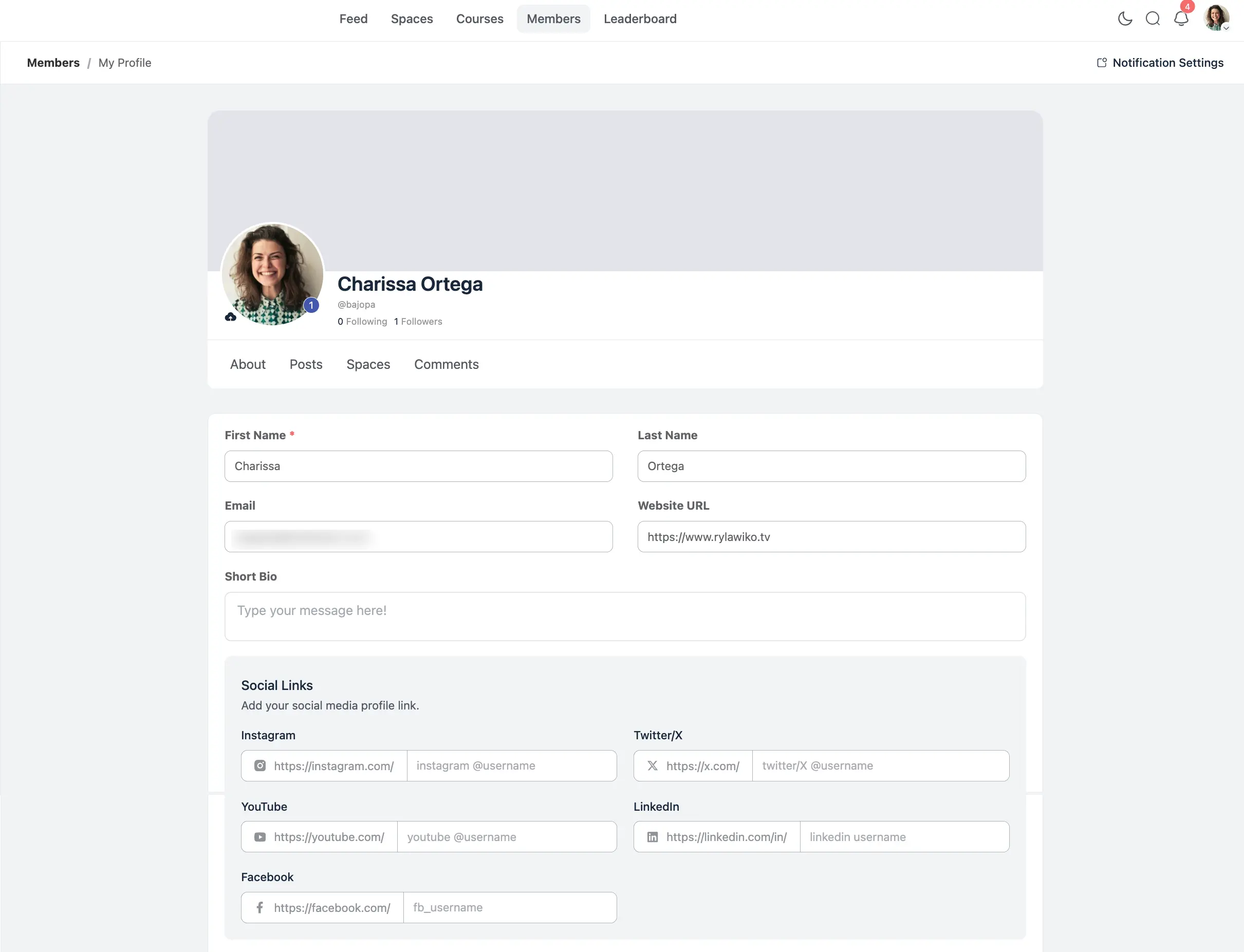
This will open the profile editor, where a member can change their:
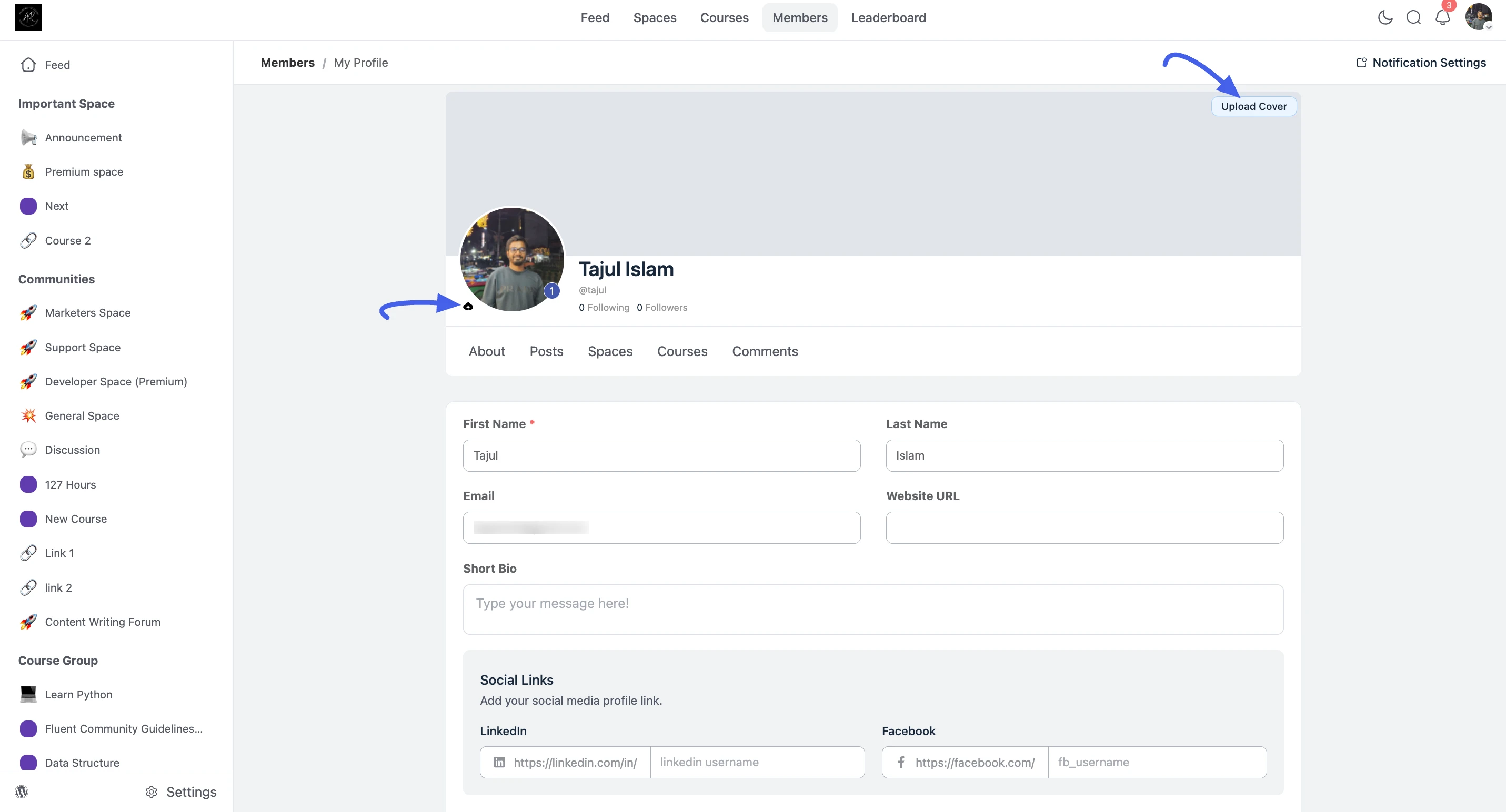
- Profile Picture & Cover Photo: Upload new images to personalize their page.
- Name, Username & Bio: Keep profile identity details clear and up to date.
- Contact & Website Info: Add relevant public profile details.
- Social Links: Connect personal websites and social media accounts.
How Admins Manage Profiles
As an administrator, you have additional controls for every user profile from the WordPress dashboard.
- Navigate to FluentCommunity → Members.
- Find the user you want to manage and click Edit.
This opens the admin profile editor, where you can update member details and apply admin-only actions.
Administrative Actions
From the back-end, you can perform several exclusive actions:
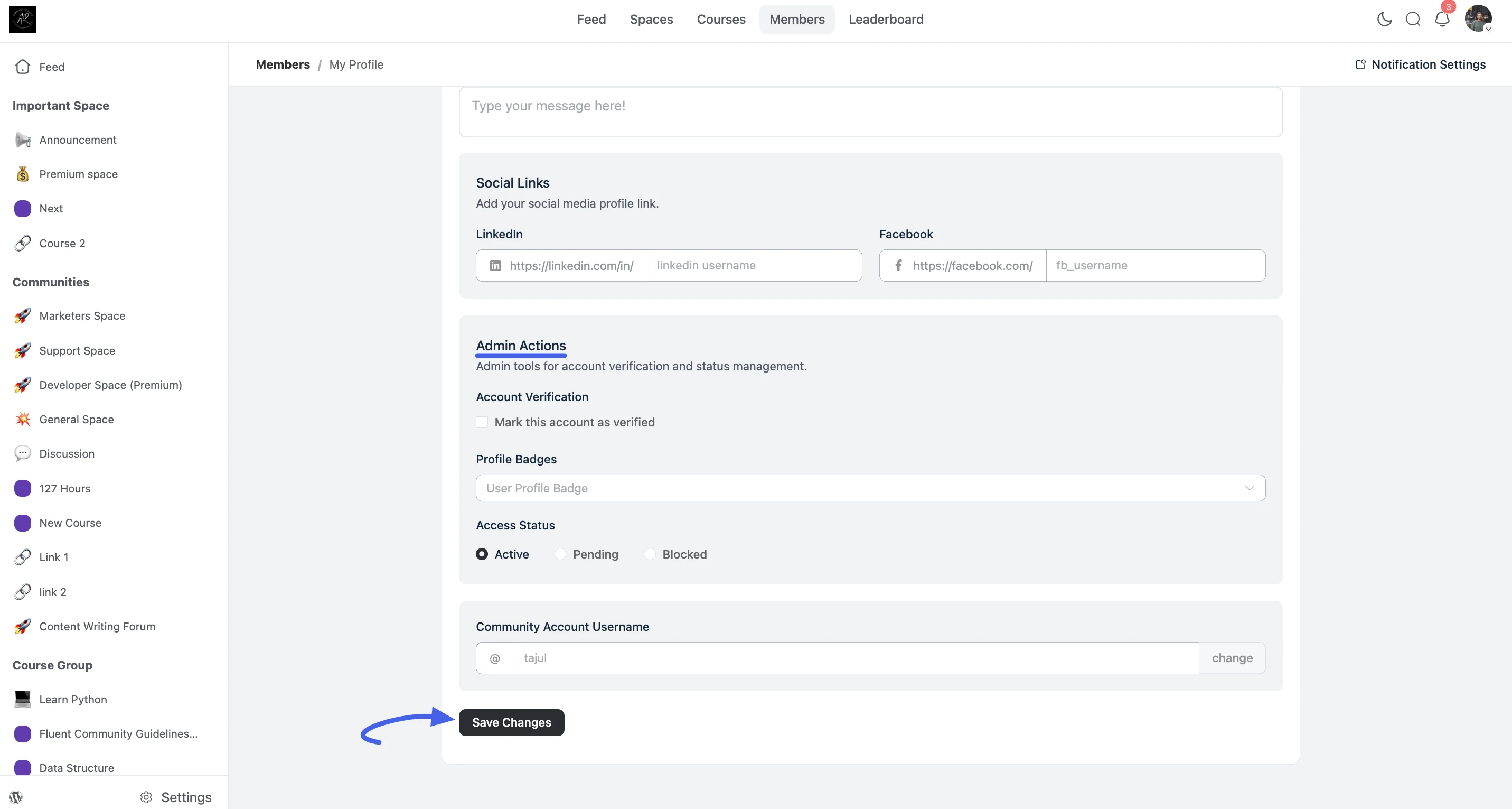
- Verify Account: Mark trusted members or team accounts as verified.
- Change Access Status: Set member status to Active, Pending, or Blocked.
- Manage Username & Profile Data: Review and update profile data when needed for consistency or moderation.
- Assign Badges (Pro): If Gamification is enabled, manually assign badges to recognize contribution and role. Learn more about creating and assigning badges.
⚠️ Important: Modifying a user's profile information or access status should be done with care. Always ensure you are acting in accordance with your community's terms of service and privacy policy.