Appearance
Setting Up Leaderboards
Leaderboard Levels keep your members actively engaged over the long term. As users post, comment, and interact within the community, they earn points that automatically advance them through your customized milestone ranks.
Enable Leaderboards
Activate the gamification engine from your administrator dashboard to start tracking user progression:
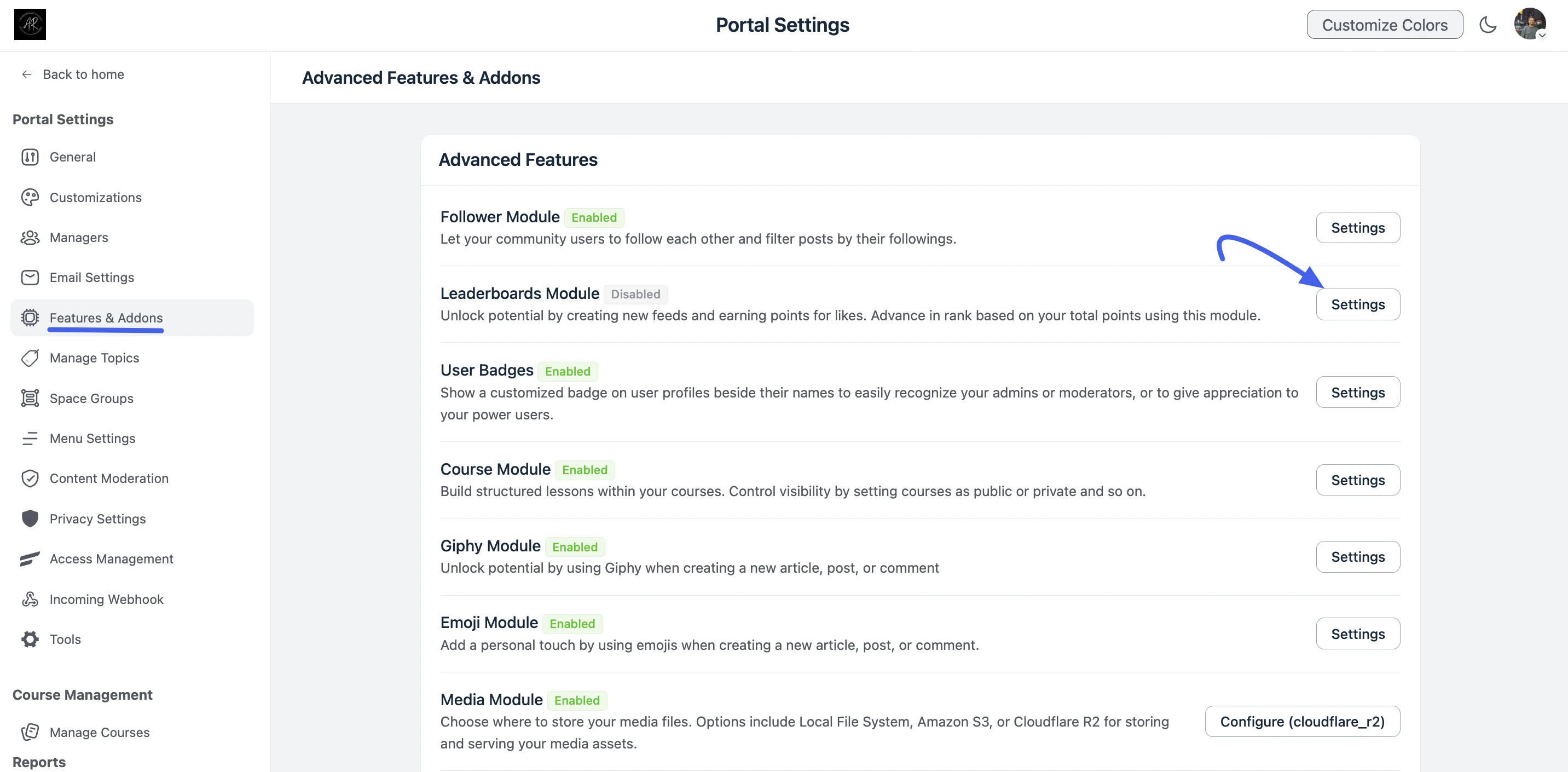
- Navigate to Portal Settings using your main community sidebar.
- Click the Features & Addons tab from the left navigation panel.
- Locate the Leaderboards Module row and click the Settings button.
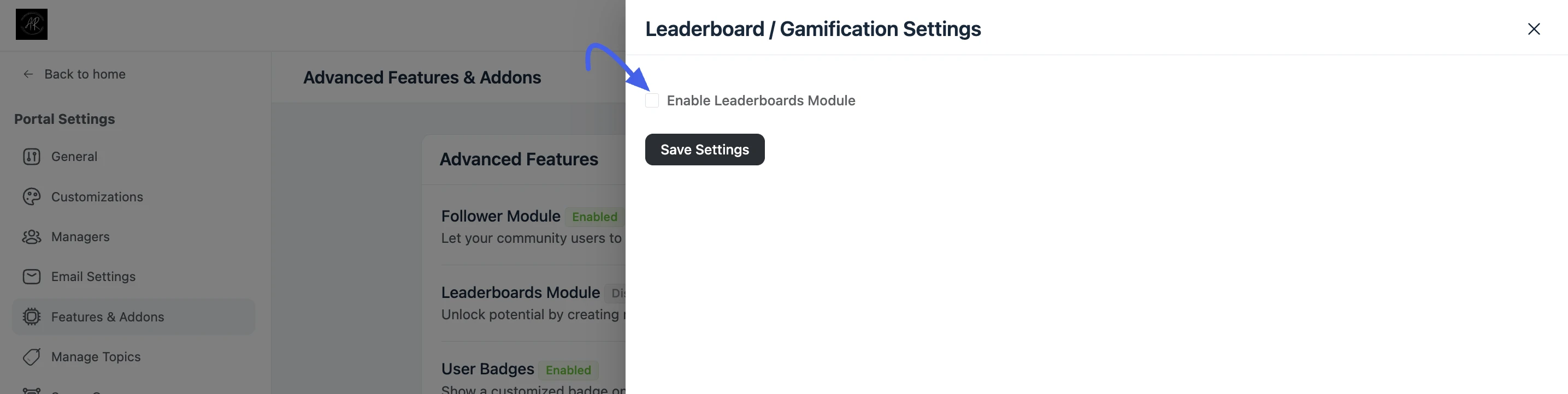
- Check the box to Enable Leaderboards Module inside the side panel settings drawer.
- Click Save Settings.
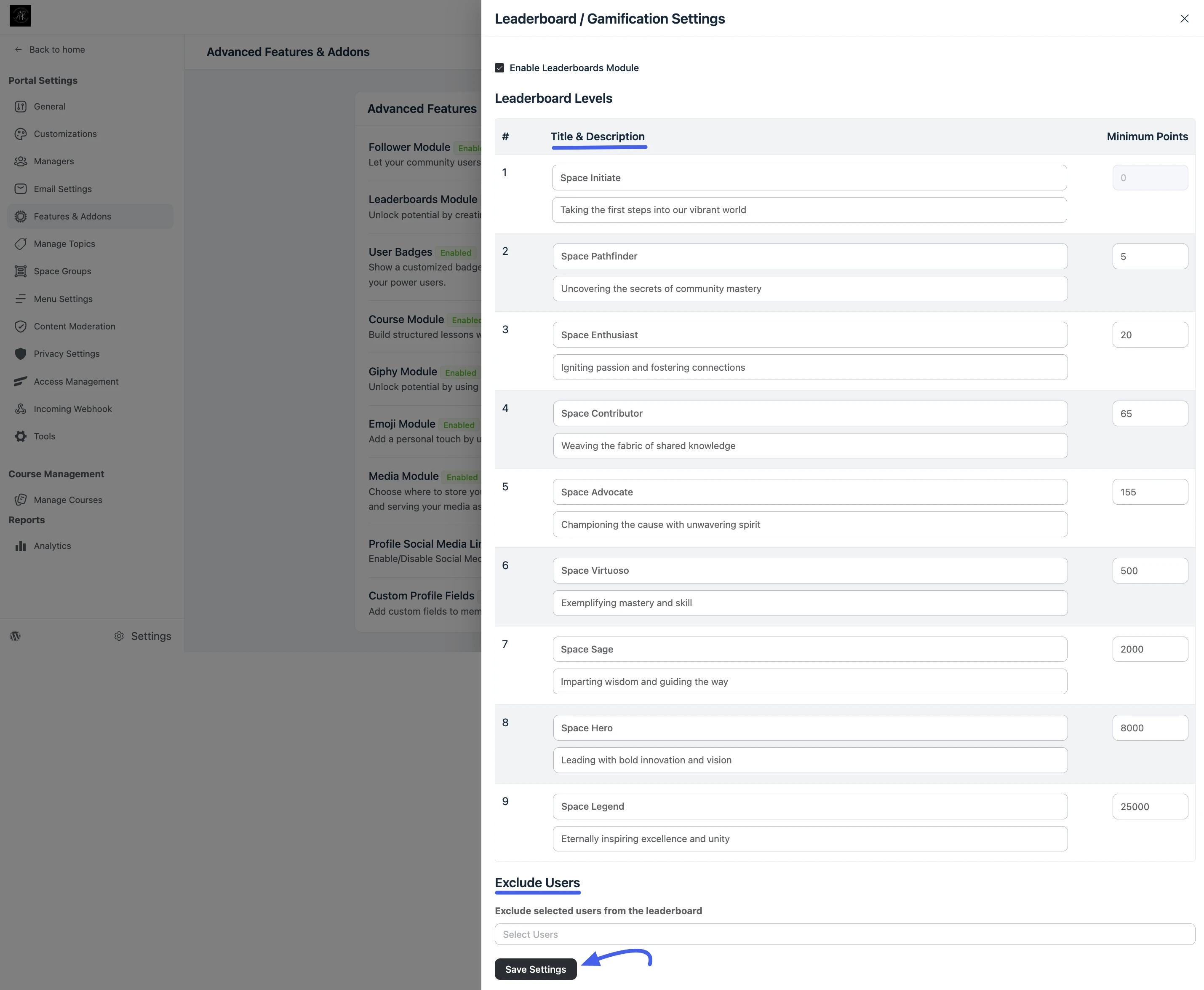
Setup Level Tiers
Once you enable the module, the configuration drawer expands so you can build your custom rank progression system.
For each specific level tier row, define the following settings:
- Title: Enter the public name of the milestone rank (e.g., Space Initiate or Space Legend). This title displays prominently on the user's profile card.
- Description: Write a brief, motivating summary explaining what the rank represents to encourage members to climb higher.
- Minimum Points: Input the exact point threshold a user must accumulate to unlock the level.
💡 Tip: Always set Level 1 to
0points so new registrants join your initial tier automatically. Scale higher tiers progressively to maintain long-term momentum.
Exclude Users
Maintain competitive fairness across your public directories by hiding administrative, moderator, or team accounts from the member rankings:
- Scroll down to the Exclude Users section located at the bottom of the settings drawer.
- Click inside the search field labeled Exclude selected users from the leaderboard.
- Type and select the specific user profiles or team accounts you want to remove from the public standings.
- Click Save Settings to secure your changes.