

Appearance
Space Links
Space Links allows you to add custom navigation links inside any Space. Each link appears in the Space's navigation bar, giving members quick access to related resources, external websites, internal pages, tools, or any URL relevant to that Space.
Use Case: Use Space Links to point members to a resource library, an onboarding checklist, a Zoom room link, or a related course without leaving the community.
NOTE
For sidebar menu links created from the dashboard using the Links space type, see Add Custom Links (Pro).
NOTE
As of FluentCommunity 2.11.0, custom links are managed from Space Settings → Menu rather than a standalone Space Links tab. See Space Menu Manager for the current workflow — it covers everything below, plus per-link visibility and choosing between the tab bar and the sub bar.
How to Add a Link
- Navigate to the Space you want to add a link to.
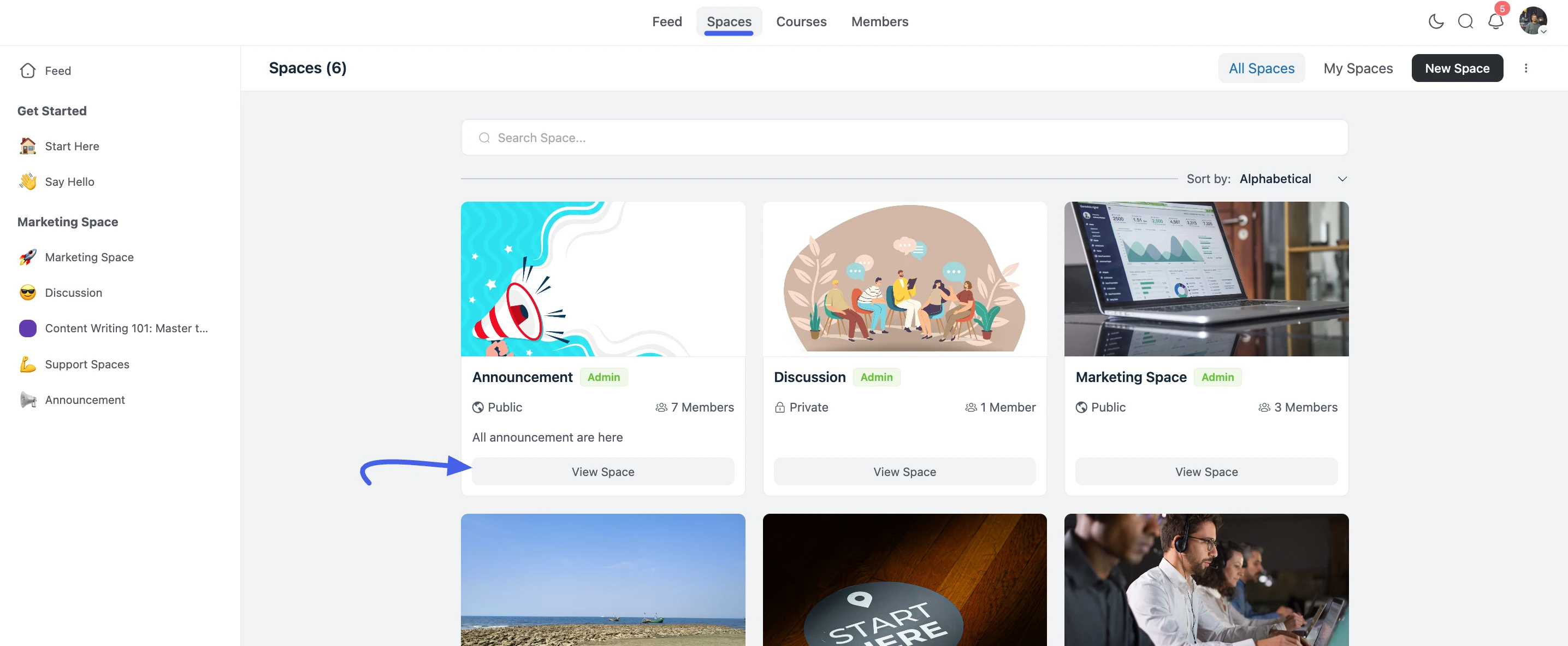
- Click the ⋮ (three-dot) menu in the top-right corner and select Space Settings.
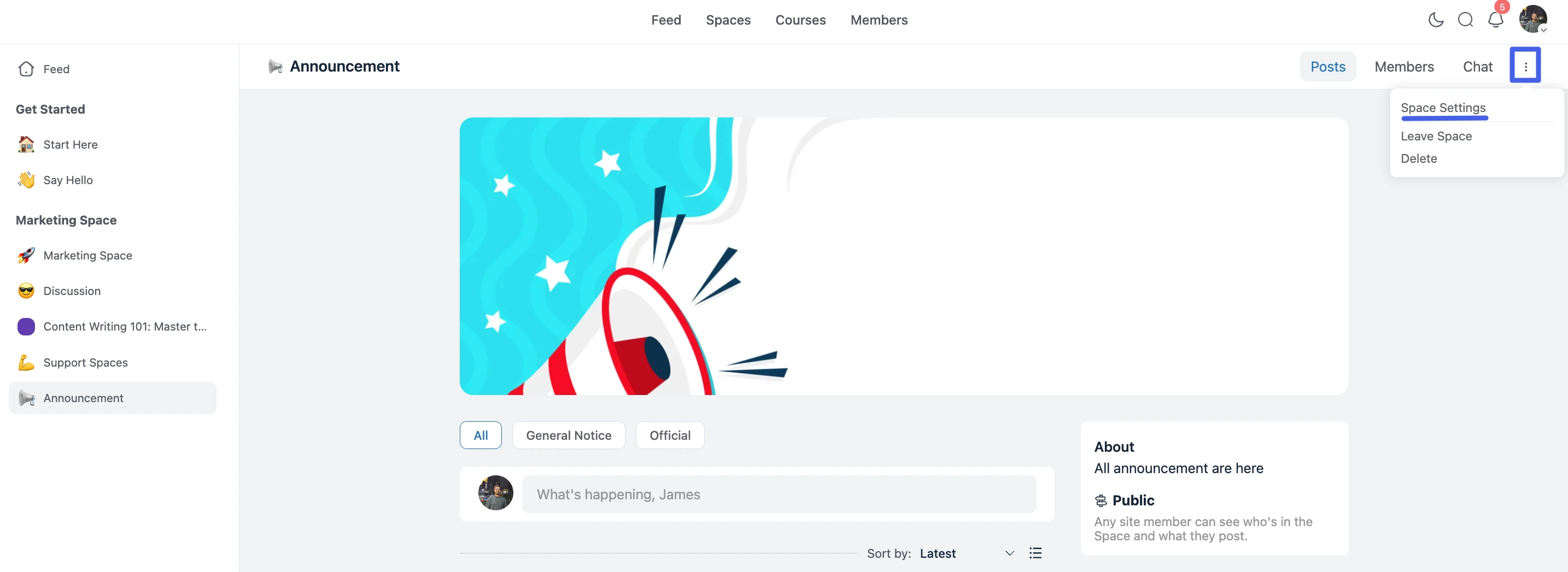
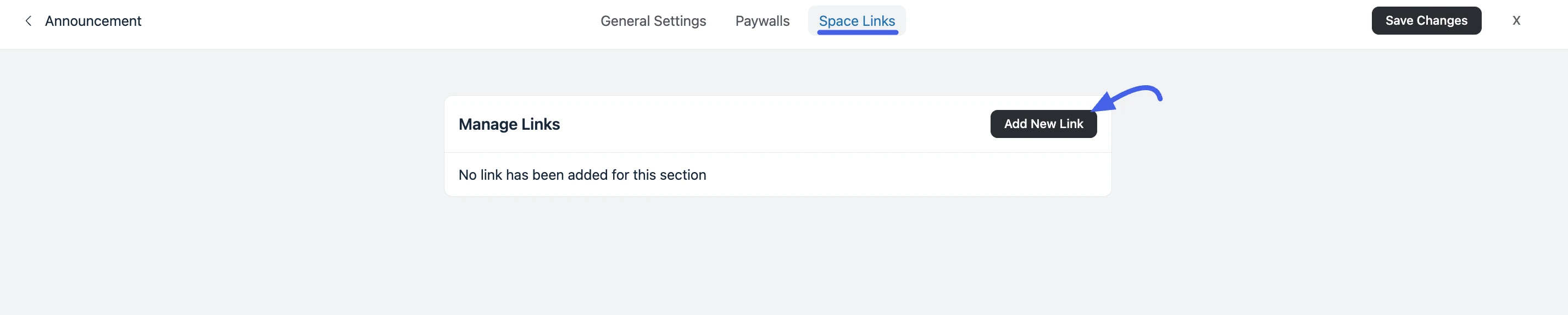
- Click the Space Links tab at the top of the settings panel.
- Click the Add New Link button.
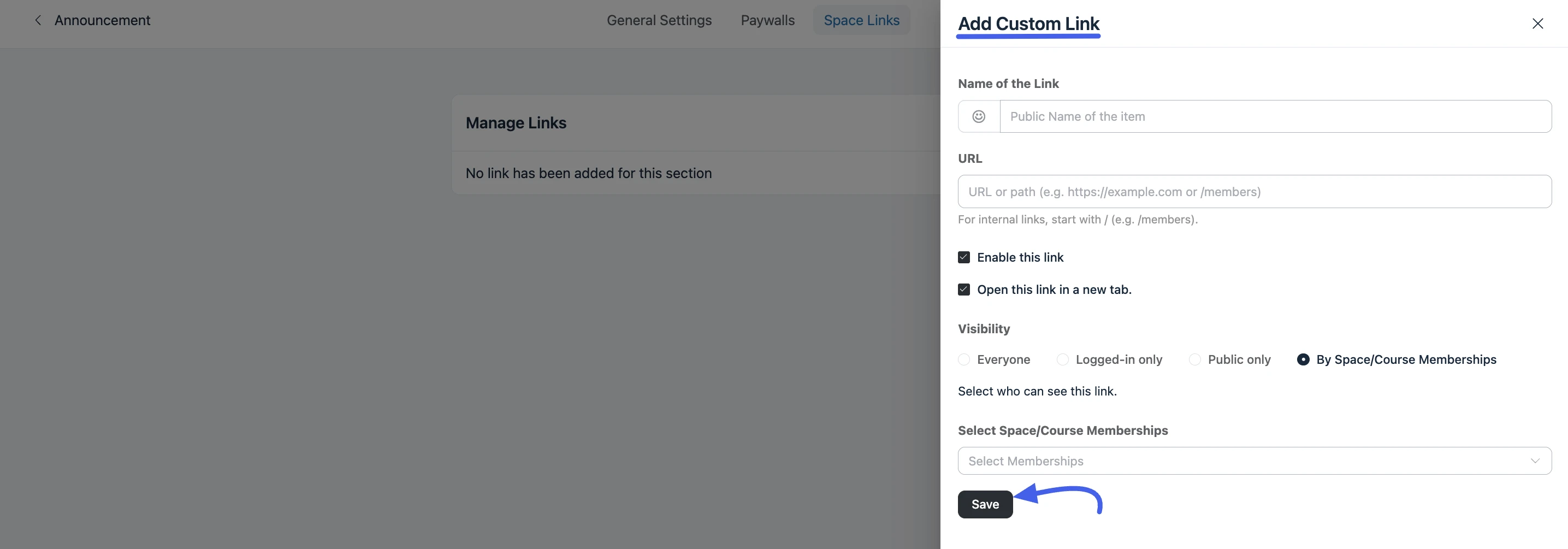
A popup form appears. Fill in the following fields:
Custom Link Fields
Name of the Link: The label that appears in the Space navigation. Keep it short and descriptive (e.g., Resources, Join Call, Worksheet).
You can optionally add an icon beside the link name:
- Click the empty box to the left of the Name field.
- An icon picker popup appears — search or browse to select an icon.
- Click the icon to apply it.
URL: The destination address for the link. Use a full URL including https:// for external links, or a relative path for internal pages.
Open in New Tab: Toggle this on if the link should open in a new browser tab. Recommended for external URLs so members don't lose their place in the community.
- Click Save to add the link.
The link now appears in the Space's navigation bar for all members.
NOTE
Only Space Admins and Site Admins can add, edit, or delete Space Links. Regular members see the links but cannot manage them.
Managing Existing Links
To edit or remove a link, return to Space Settings → Space Links. Each saved link in the list has action controls:
- Edit: Click the edit button to reopen the form and update any field.
- Delete: Click the delete button to permanently remove the link from the Space.
Click Save Changes after any edits to apply them.

How Links Appear to Members
Space Links sit in the Space's navigation bar alongside Posts, Members, and any Space Pages (Pro) you've added to the menu. A link that points at the page a member is currently viewing is highlighted as the active tab, the same way Posts is highlighted on the feed.
On phones and narrow screens, the tab bar folds into a single menu button labelled with the current section — your links are listed inside it, right after Posts, About, and Members.