

Appearance
The Member Directory
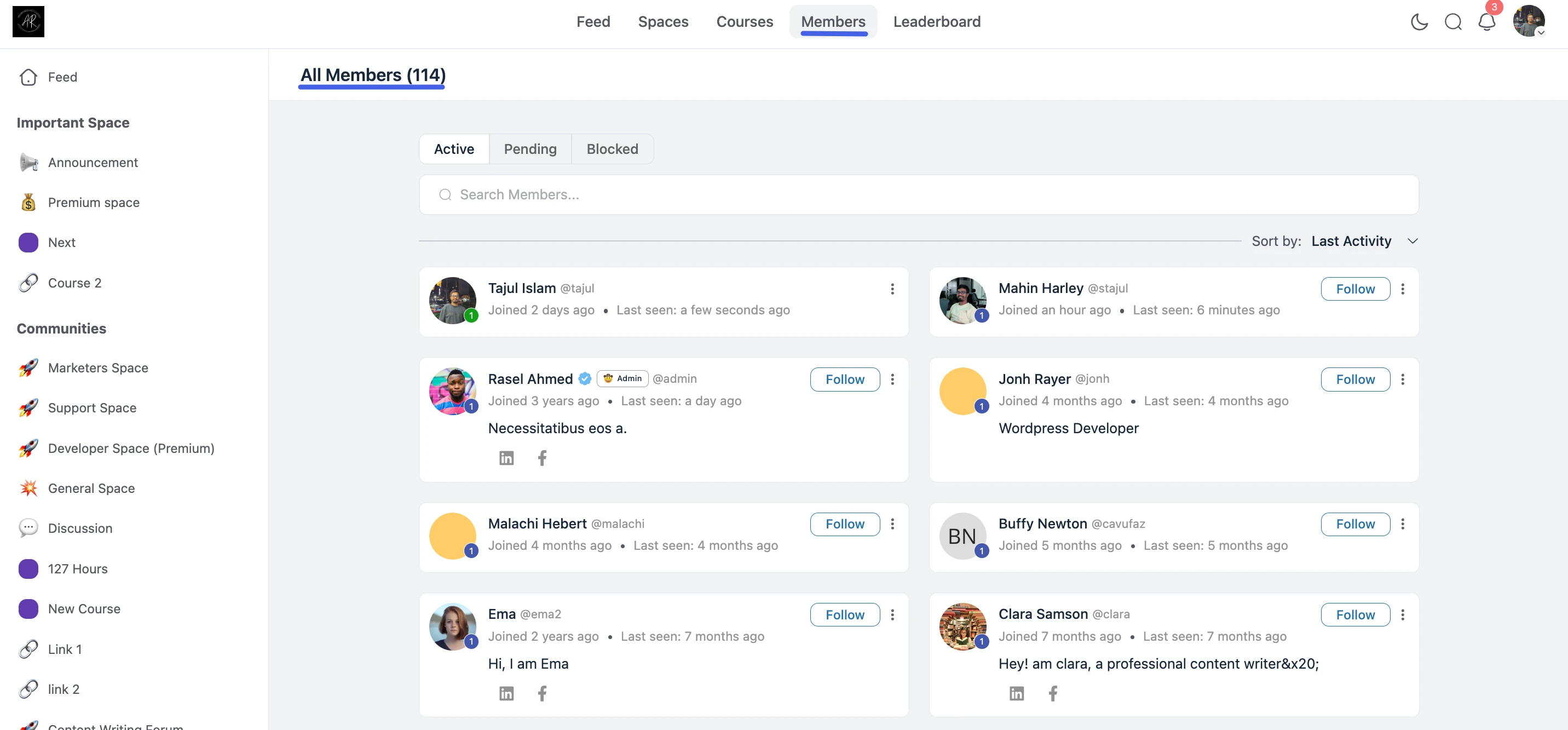
The Member Directory is a central hub where people in your community can discover, search, and connect with each other. Think of it as your community's "people finder" where members can quickly identify who is active and relevant to their interests.
Use Case: A new member joins and wants to find experienced users in a specific niche. They can open the Member Directory, search by name or keyword, and follow the right people immediately.
Accessing the Member Directory
For members, the directory is available from the front-end community navigation, usually under the Members tab.
For administrators, you can view and manage members from the back-end by navigating to FluentCommunity → Members in your WordPress dashboard.
The Member Directory is more than a static user list. It includes tools that make discovery easy:
- Search Members: Find people by display name, username, or relevant profile keywords.
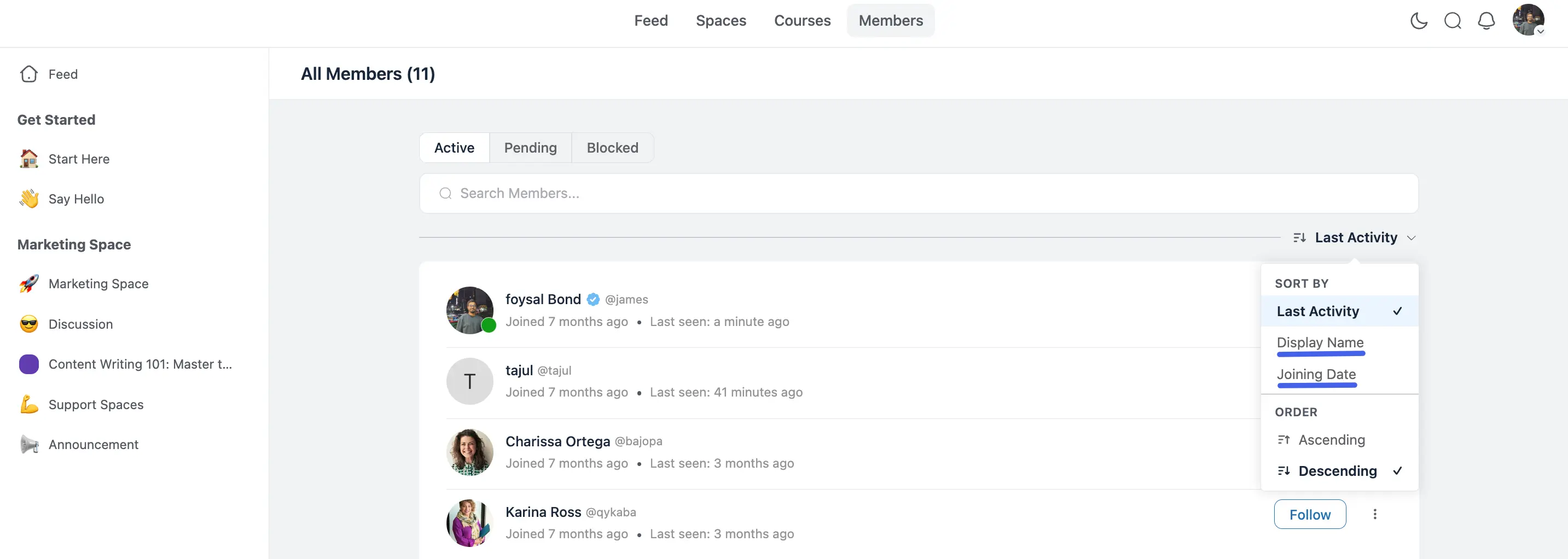
- Sort Results: Reorder the list by criteria such as Last Activity, Display Name, or Joining Date and choose the direction, ascending or descending.
- Quick Profile Context: Each row/card gives useful at-a-glance context (name, username, joined date, and activity info).
- Follow and Connect: Members can follow others directly from the directory to build meaningful connections.
Sorting the Directory
The sort control above the member list separates what you sort by from which direction it goes. Click the dropdown to pick a field:
- Joining Date and Last Activity sort newest first by default.
- Display Name sorts A → Z by default.
Click the arrow button next to the dropdown to flip between ascending and descending, the arrow updates to show which direction is active. Your choice is saved per list, so it's restored the next time you open the directory.
NOTE
The same sort-and-direction control appears on a Space's member list and a course's student list. see Adding Members to a Space.
Directory Privacy Settings
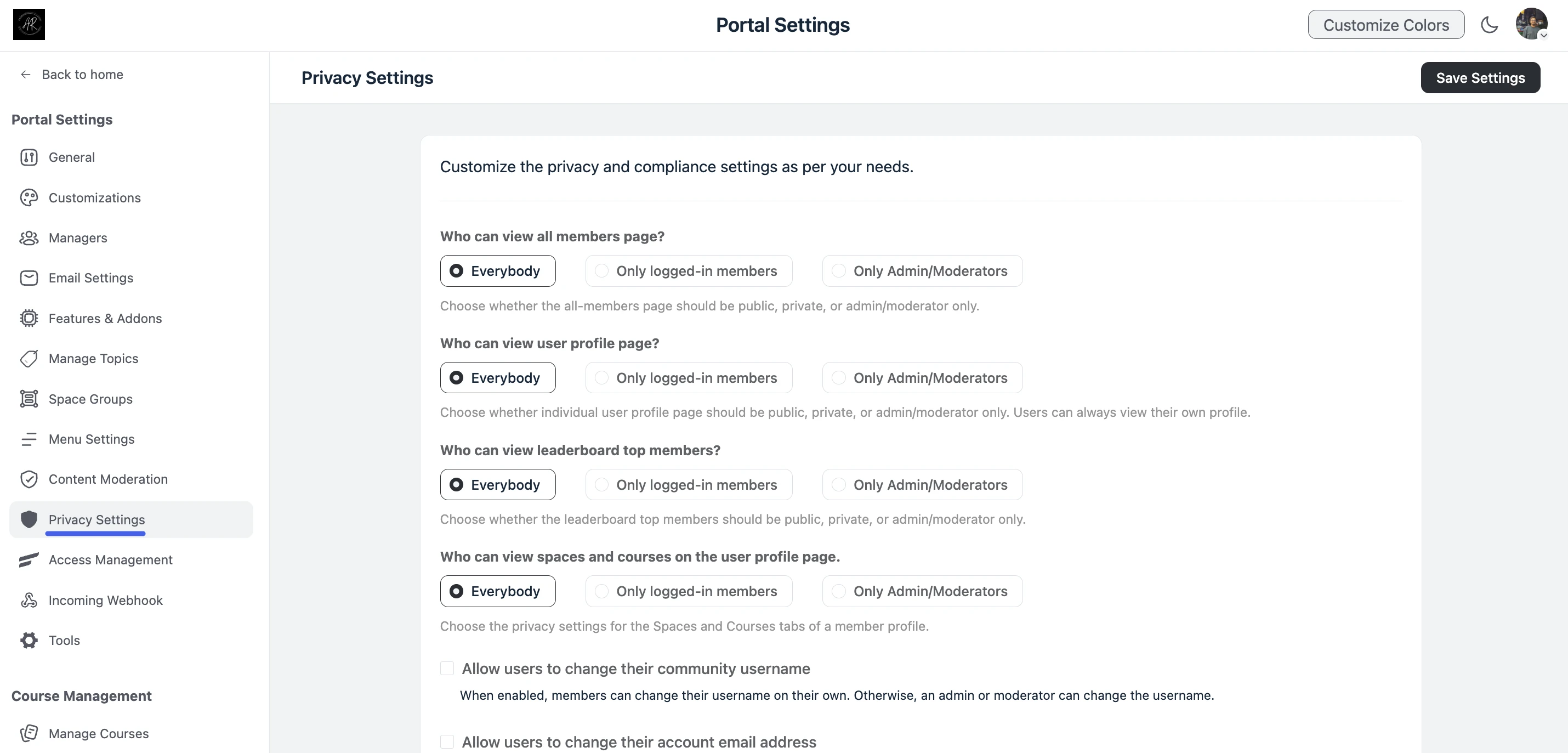
As an administrator, you control who can view the Member Directory and related member pages. Open the FluentCommunity Settings tab in the bottom-left corner of the dashboard, click Privacy Settings, adjust the option below, then click Save Settings.
Who Can View the Member Directory
Who can view all members page? controls access to the Member Directory itself:
- Everybody: Anyone can browse the full members list.
- Only logged-in members: Only signed-in users can view the directory (recommended for private communities).
- Only Admin/Moderators: Only staff can access the directory; members cannot browse all members publicly.
Related Profile & Community Visibility
The same Privacy Settings tab also controls who can view member profile pages, leaderboard top members, and the membership spaces listed on a profile — plus what account details members may change themselves. For the full reference, see Privacy Settings.
Use Case: For a private membership community, set Who can view all members page? to Only logged-in members so the directory is visible to members only, not public visitors.
Best Practices
- Keep the Member Directory visible to logged-in users to encourage networking and collaboration.
- If your community is private, restrict directory visibility to members only.
- Encourage members to complete profiles so directory search becomes more useful.
- Use sorting (especially Last Activity) to help users find active contributors quickly.