

Appearance
Community as Homepage
By default, your FluentCommunity portal lives on its own page, usually at yoursite.com/portal. But you may want your community to be the main event, the very first thing visitors see when they arrive at your site.
This guide covers two goals:
- Making your community your actual homepage, so it loads at yoursite.com.
- Giving your community a cleaner URL (like yoursite.com/community) as a simpler alternative.
Use Case: You run a membership site where the community is the core product, so you want visitors to land directly in the community feed instead of a separate marketing page.
Goal 1: Make Your Community the Homepage
To make your community load at the root of your site, you need to set the FluentCommunity portal slug to an empty value. There are two ways to do this. Method A is recommended for most users.
Method A: Using a Code Snippet Plugin
This is the safest option for the vast majority of users. It uses the free FluentSnippets plugin to add the required code without ever touching your core WordPress files. Think of it as a managed sandbox for custom code: if anything goes wrong, you can deactivate the snippet with a single click to instantly undo the change.
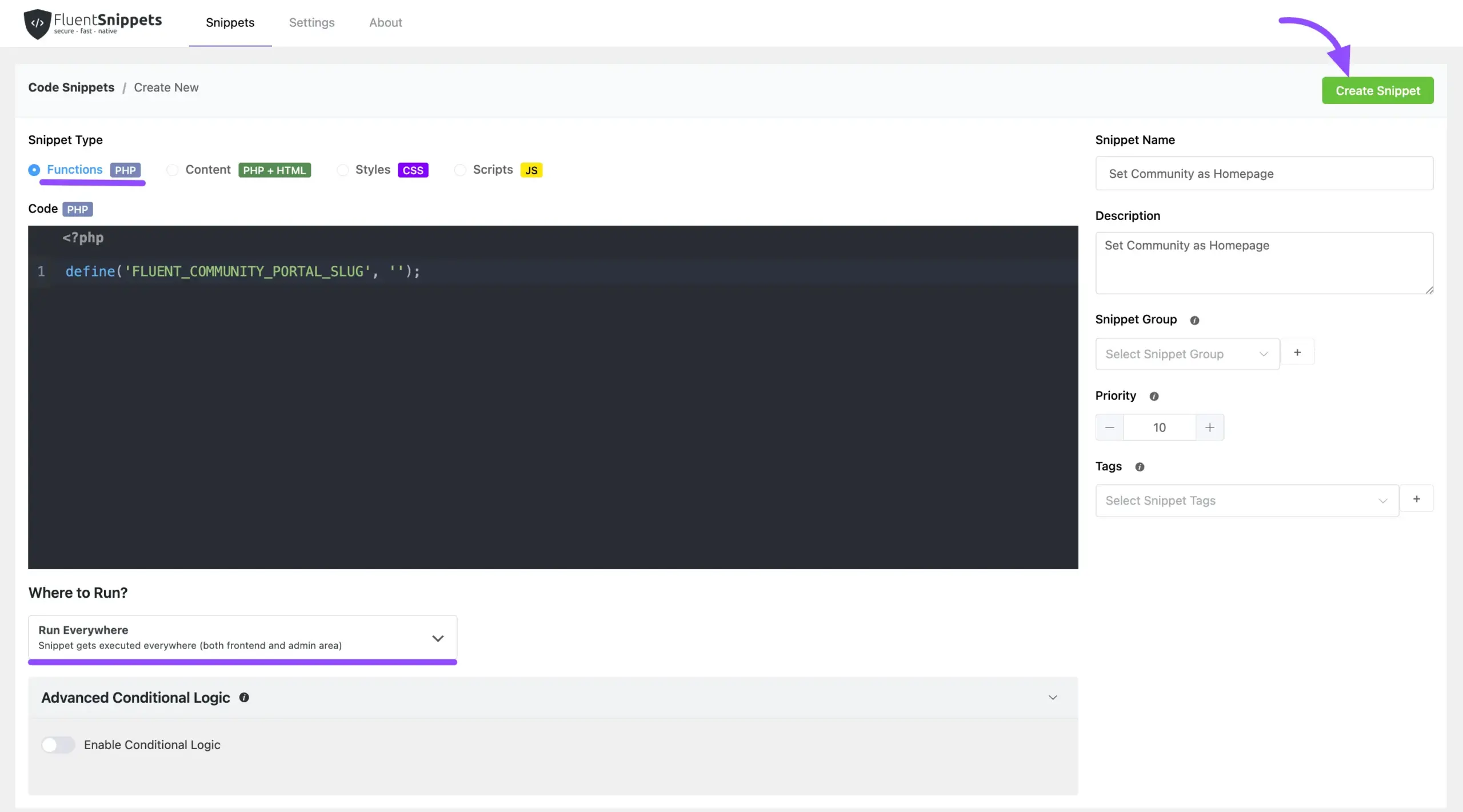
Step 1: Create a New Snippet
- In the WordPress left sidebar, select FluentSnippets.
- Click the New Snippet button.
Step 2: Add and Configure the Homepage Code
Give it a clear title, such as "Set Community as Homepage".
Set the Snippet Type to PHP Snippet.
In the code box, carefully paste the following single line:
phpdefine('FLUENT_COMMUNITY_PORTAL_SLUG', '');This tells FluentCommunity not to use any extra words like
/portalin the URL, so the community becomes your main homepage.Under the Where to Run section, make sure the method is set to Run Everywhere (this is the default).
Click Create Snippet, then click Activate.
Step 3: Refresh Your Permalinks
This step is crucial. You've changed your site's structure, so you need to tell WordPress to update its internal map of your pages.
- Go to your WordPress Admin Dashboard.
- Navigate to Settings → Permalinks.
- You don't need to change any settings. Just scroll to the bottom and click Save Changes.
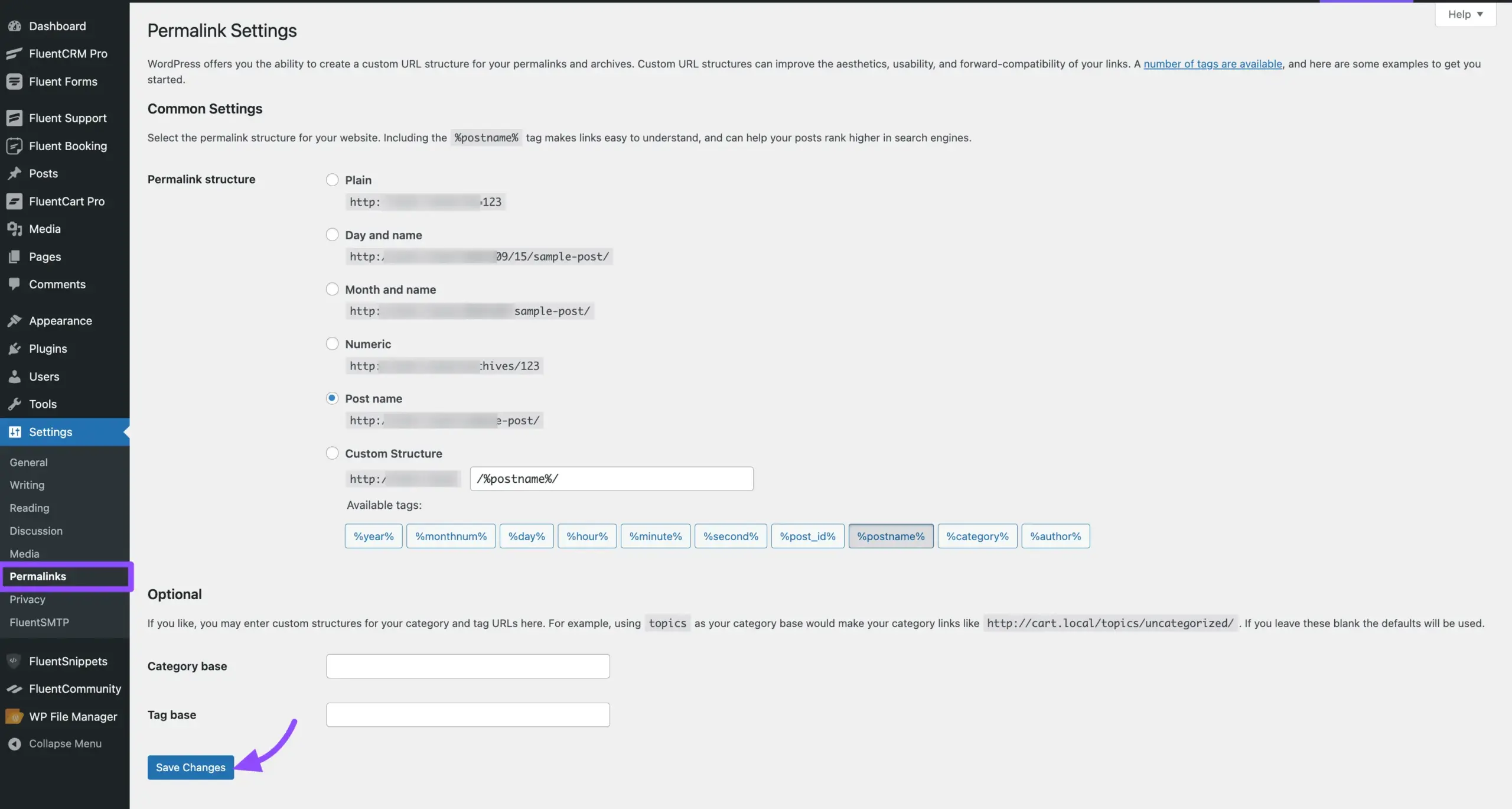
Your homepage is now your FluentCommunity portal. Open your site in a new browser tab to see it in action.
Method B: Editing the wp-config.php File
This method achieves the same result by editing your wp-config.php file directly. Use it if you prefer not to install a snippet plugin.
Connect to your site's files: Access your file system, for example using a File Manager plugin.
Locate wp-config.php: This file sits in the main (root) folder of your WordPress installation.
Open the file to edit: Right-click
wp-config.phpand choose Edit.Find the correct spot: Scroll down until you see the line
/* That's all, stop editing! Happy publishing. */Paste the code: On a new line directly above that comment, add:
phpdefine('FLUENT_COMMUNITY_PORTAL_SLUG', '');Setting the slug to an empty value (
'') tells WordPress you want the community to be the main homepage, with no extra words in the URL.Save and close the file: Double-check your work, then click Save in your file editor.
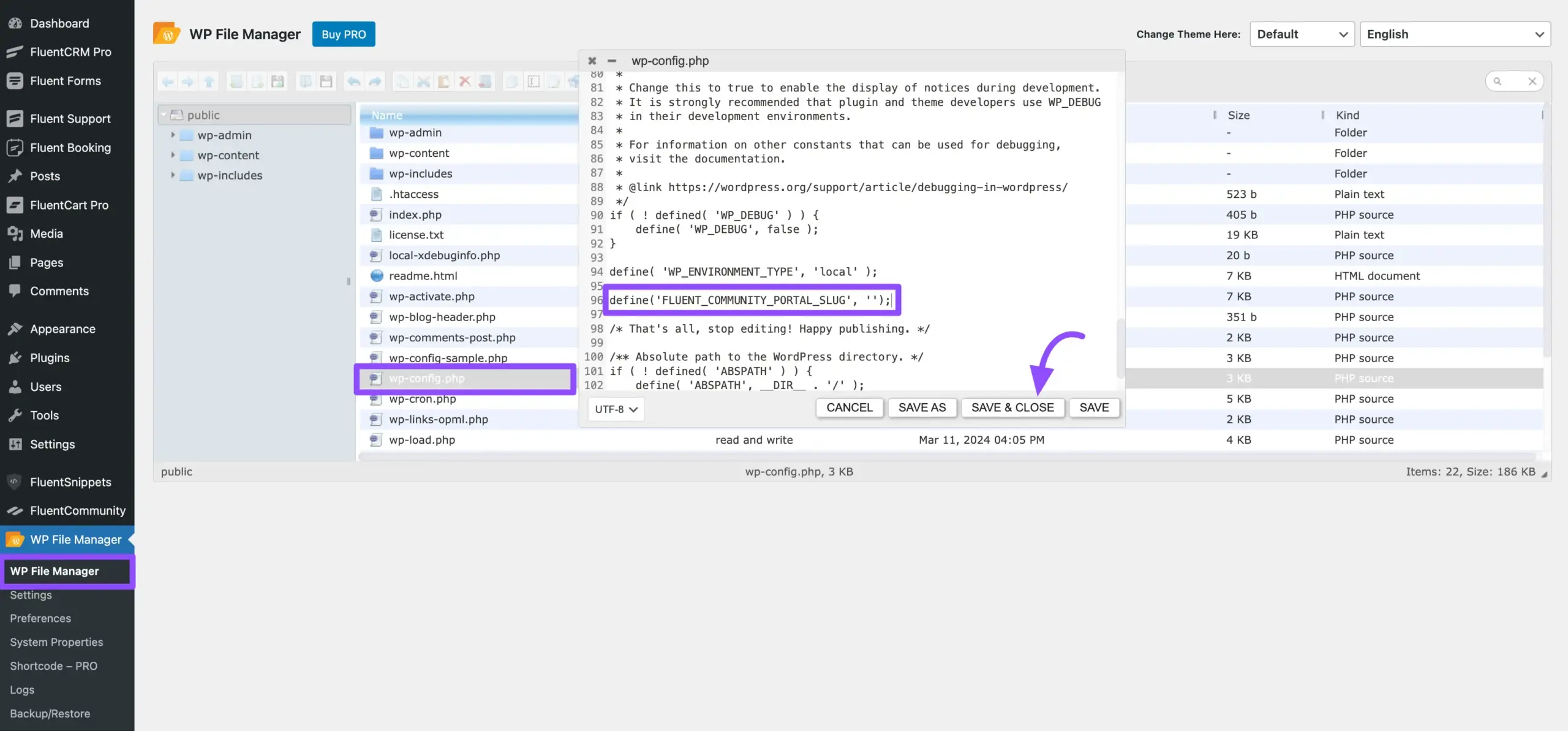
- Refresh your permalinks: Go back to your WordPress Admin Dashboard, navigate to Settings → Permalinks, and click Save Changes without changing anything else.
Open your site's main address in a new browser tab. Your community should now be your homepage.
Goal 2: Give Your Community a Nicer URL
If making your community the entire homepage is more than you need, you can simply give it a cleaner, more professional URL like yoursite.com/members.
- From your WordPress dashboard, navigate to FluentCommunity.
- On the Dashboard page, find the Change Community URL setting.
- In the Change Community URL field, enter a slug with no spaces (hyphens are fine). Examples:
community,members,hub,my-group. - Click the Change Portal URL button.
- Go to Settings → Permalinks from your main WordPress menu and click Save Changes to refresh your site's link map.
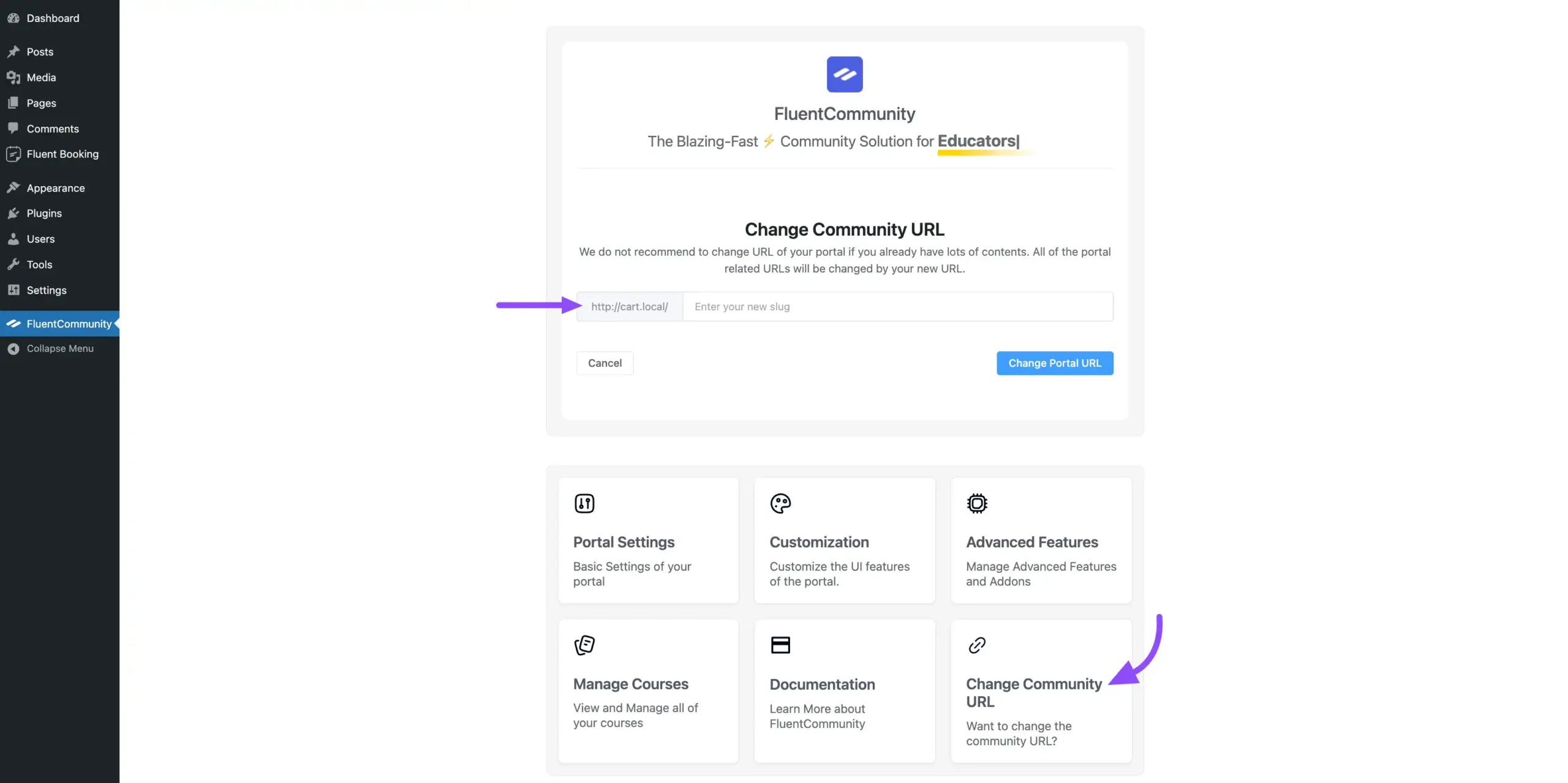
That's it. Your community now has a clean, custom URL.
Quick Fixes for Common Issues
- Blank white page after editing wp-config.php: This almost always means a small typo in the code. Re-open
wp-config.php, check the line you added, and correct it. If you can't find the issue, restore your backup. - "Page Not Found" error after changing the URL: Refresh your permalinks. Go to Settings → Permalinks and click Save Changes. This resolves it in nearly all cases.