

Appearance
Global Feed
Welcome to your community's command center! The Feed is the main homepage and the heart of your FluentCommunity. It's where all the activity, discussions, and content come together in one central place.
When your members log in, this is the first page they'll see. It's designed to give them a real-time overview of everything happening in the community.
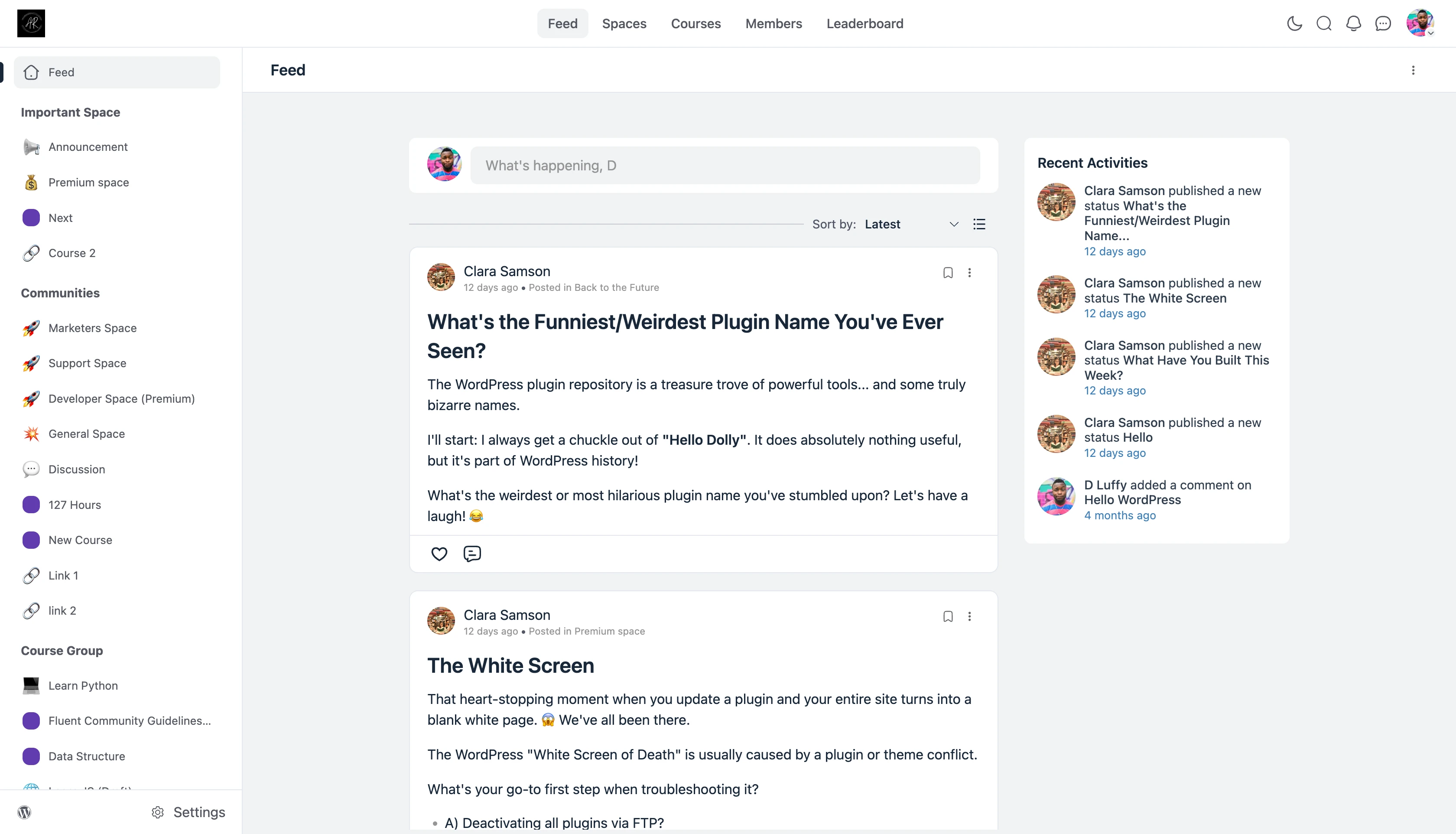
Let's explore the key areas of this page:
The Top Header Bar
This bar provides access to your main community modules and personal account options.
- Main Navigation: Quickly jump to the different parts of your community: Feed, Spaces, Courses, Members, and Leaderboard.
- Action Icons (Right Side):
- Light/Dark Mode: Click the sun/moon icon to instantly toggle the community's appearance between light mode and dark mode.
- Search: Click the magnifying glass icon to search the entire community.
- Notifications: The bell icon lights up when you have new notifications (like replies, follows, or invites).
- Messages: The chat bubble icon takes you to your private messages.
- Profile Menu: Click your own profile avatar in the top-right corner to access your profile, account settings, or log out.
The Left Sidebar (Navigation & Groups)
This sidebar is your community's main navigation menu, and it is fully customizable by the site administrator. It is organized into "Groups" that you create.
- Main Feed Link: A static link that always takes members back to this main feed.
- Custom Groups: The sections with bold headings are "Space Groups" created by the admin to organize content. In a new community, you might see a "Get Started" group with links like "Start Here" or "Say Hello" to help you get oriented. Admins can create any number of groups and add links to Spaces, Courses, or any custom URL.
- Group Content: Inside each group, an admin can add direct links to:
- Spaces (e.g., "Announcement," "Marketers Space")
- Courses (e.g., "Learn Python")
- Custom Links (e.g., "Link 1," "Link 2")
- This group system allows you to organize your community's navigation in a way that makes the most sense for your members.
- Settings: At the very bottom, members will find icons to access their Settings (if they are an admin).
The Main Feed (Center Column)
This is the primary content area where all discussions appear.
- Create Post Box: At the very top, you'll find the "Create Post" box. This is your tool for sharing updates, asking questions, and starting a new discussion. You can add a title, write your content, and select which Space to post in. (For a detailed guide on all the posting options, please see the "Creating a New Post" documentation.)
- Feed Controls:
- Sort By Filter: Just below the post box, members can sort their feed using the Sort by dropdown. The available options are set by the portal's Feed Sorting configuration.
- View Toggle: The icon next to the sort filter allows members to switch the feed layout. See Feed Views for the available styles.
- The Activity Feed: This is the main, scrollable list of all posts. Members can see who posted, what they said, and interact by liking, commenting, or clicking the three-dot menu on a post for more options (like edit, delete, or report).
The Right Sidebar (Discovery)
This sidebar helps members discover popular and recent content, keeping them engaged.
- Complete Your Profile: New members will often see a prompt, like "Complete your profile (60%)", with a button. Clicking this encourages you to fill out your profile details, which helps other members get to know you.
- Recent Activities: This widget shows a live feed of the very latest actions in the community, such as new posts or comments.