

Appearance
Welcome Banner
The Welcome Banner appears on the global feed and can be shown to both logged-in and logged-out users. Use it to share announcements, notices, promotions, or welcome messages, and add a call-to-action button to engage your community.
This guide will walk you through the steps to create and add the banner to your global feed.
Access the Welcome Banner
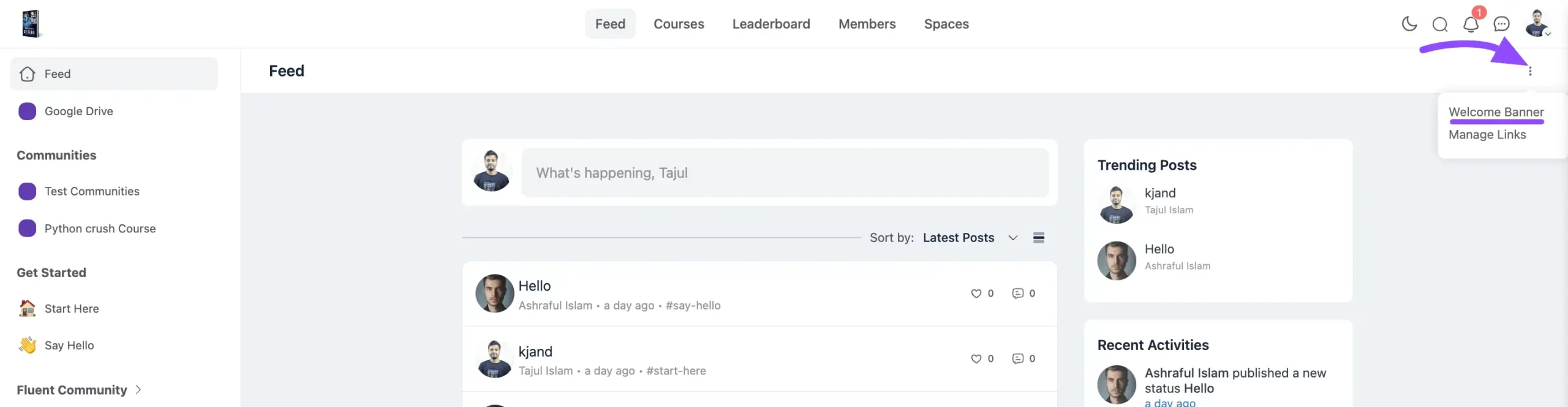
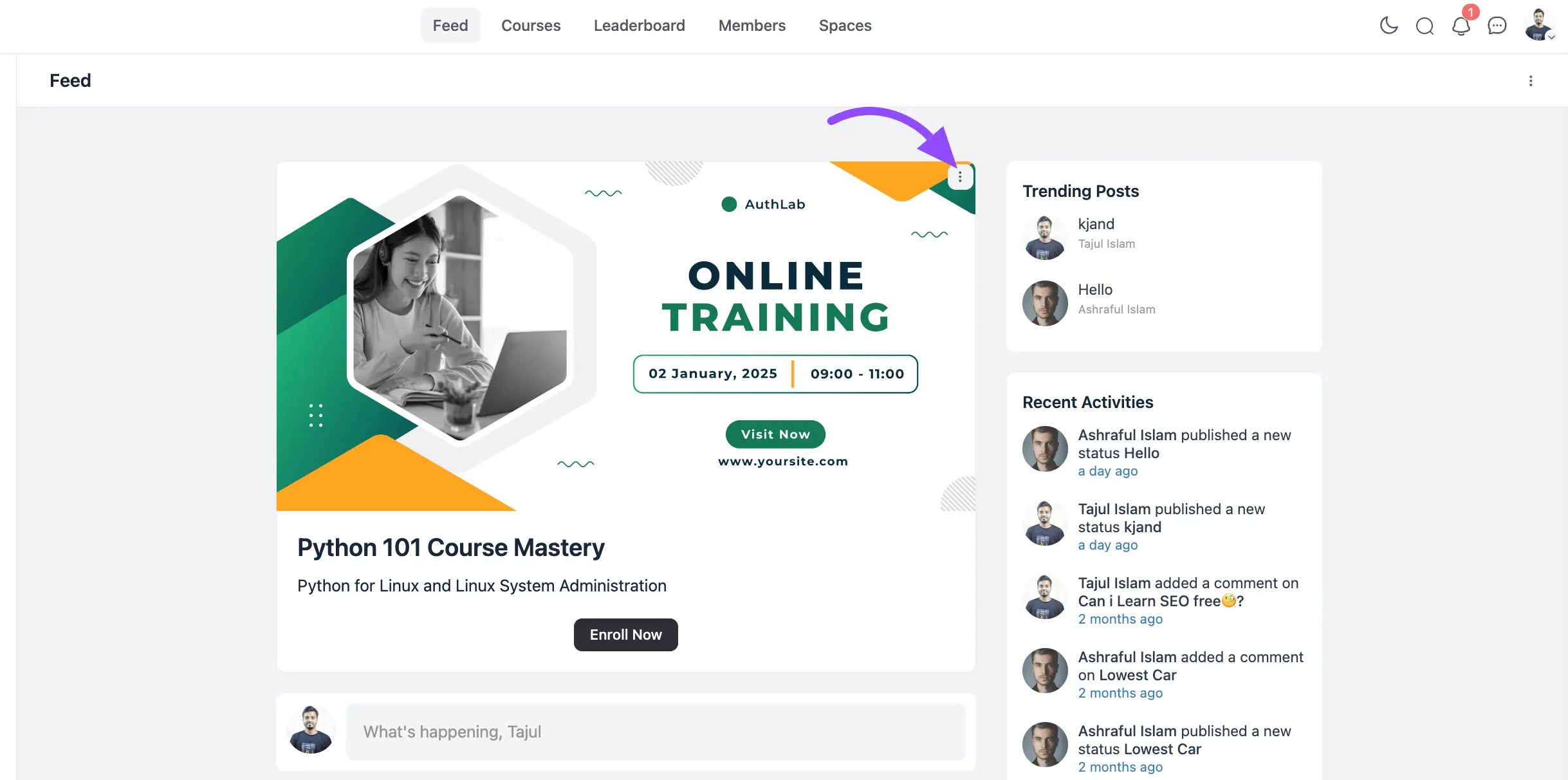
First, go to the FluentCommunity feeds section. Click on the three-dot button in the top-right corner. Select the Welcome Banner option.
Customize for Logged-In Members
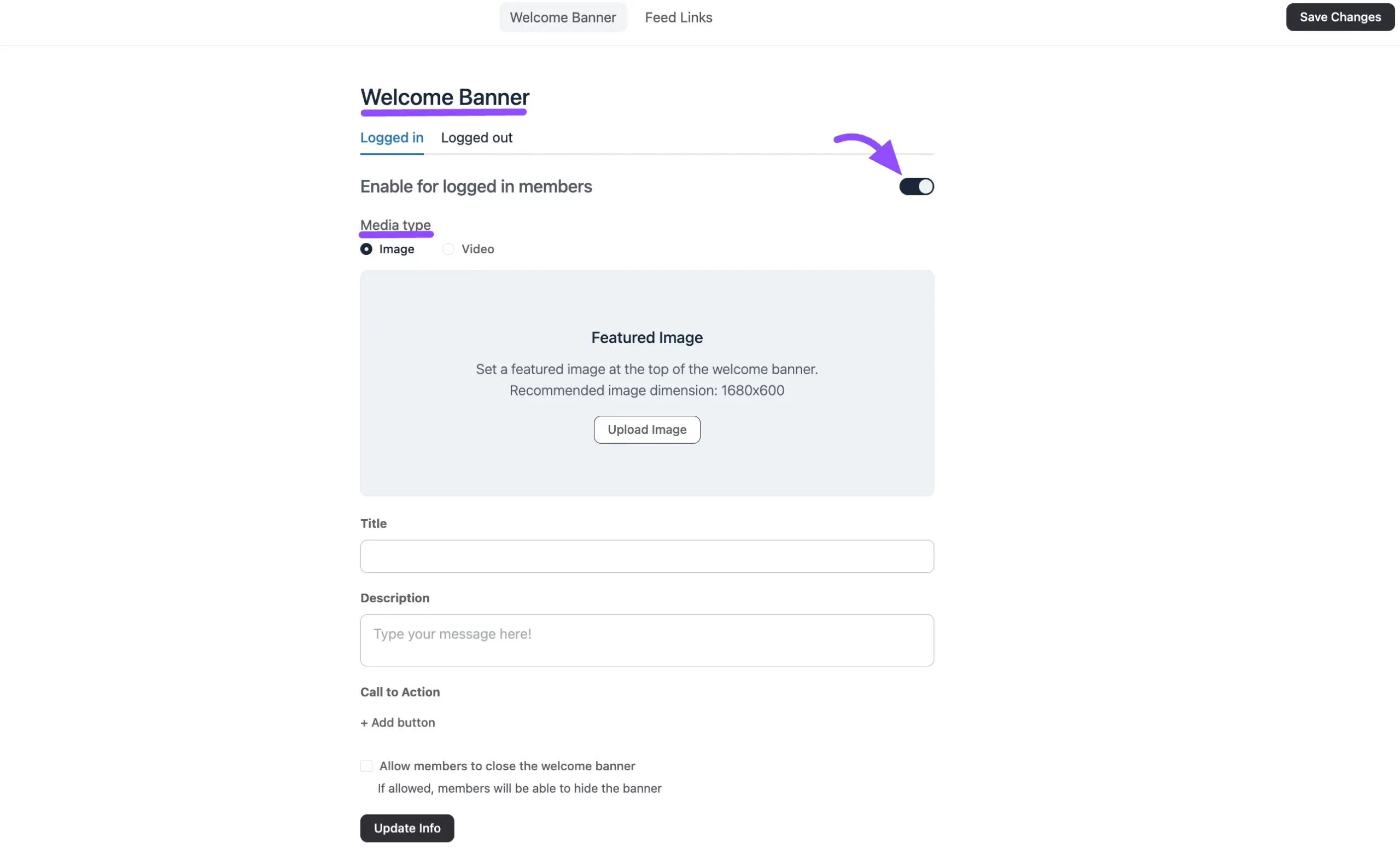
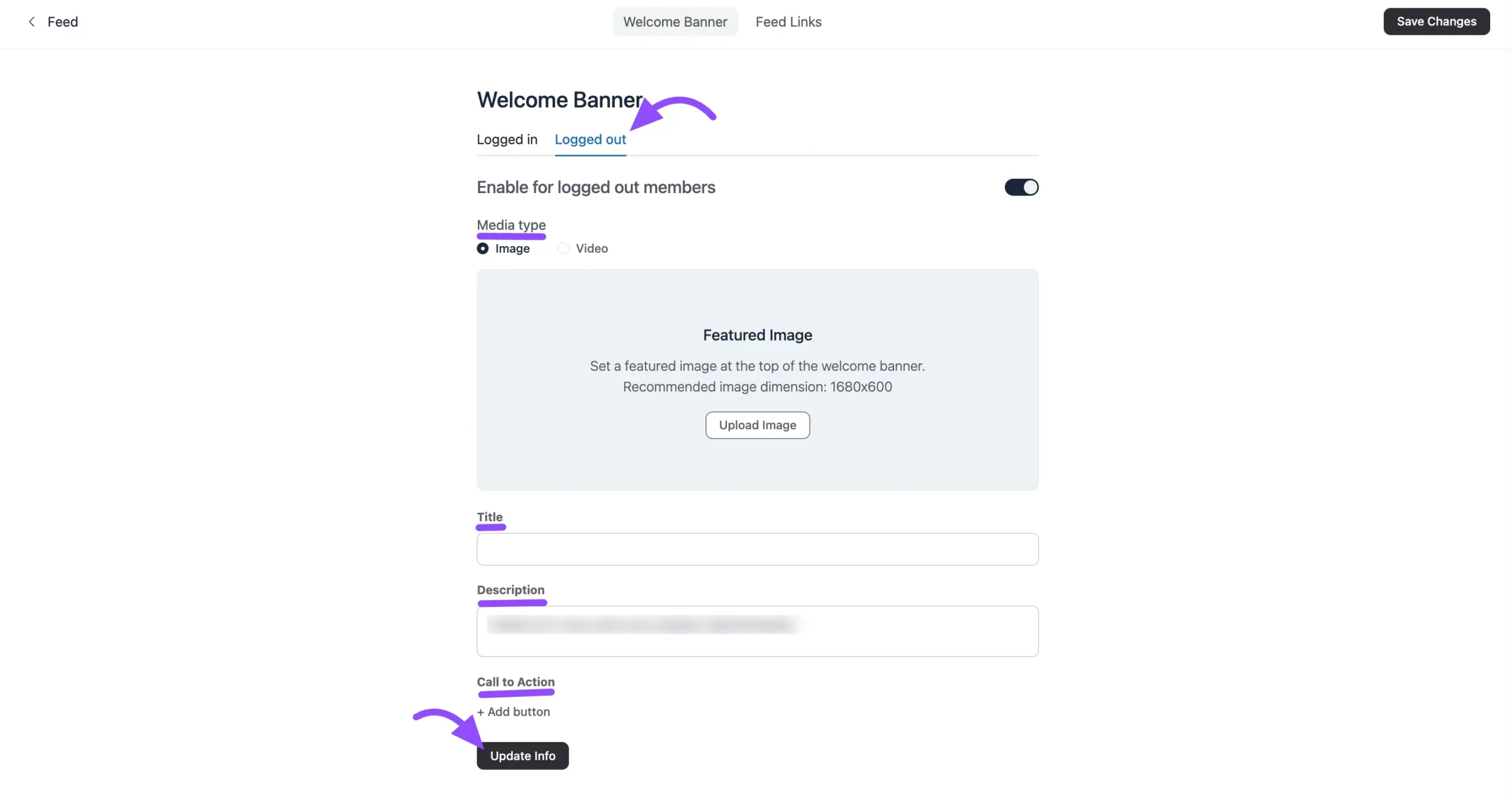
A popup window will appear, showing options for both logged-in and logged-out members. Toggle to enable the Welcome Banner for logged-in members and begin customization.
Banner Media Type
Image: Upload an image to display on the banner.
Video: You can embed a video from platforms like YouTube, Vimeo, or Wistia — simply paste the video URL and click the Embed button.
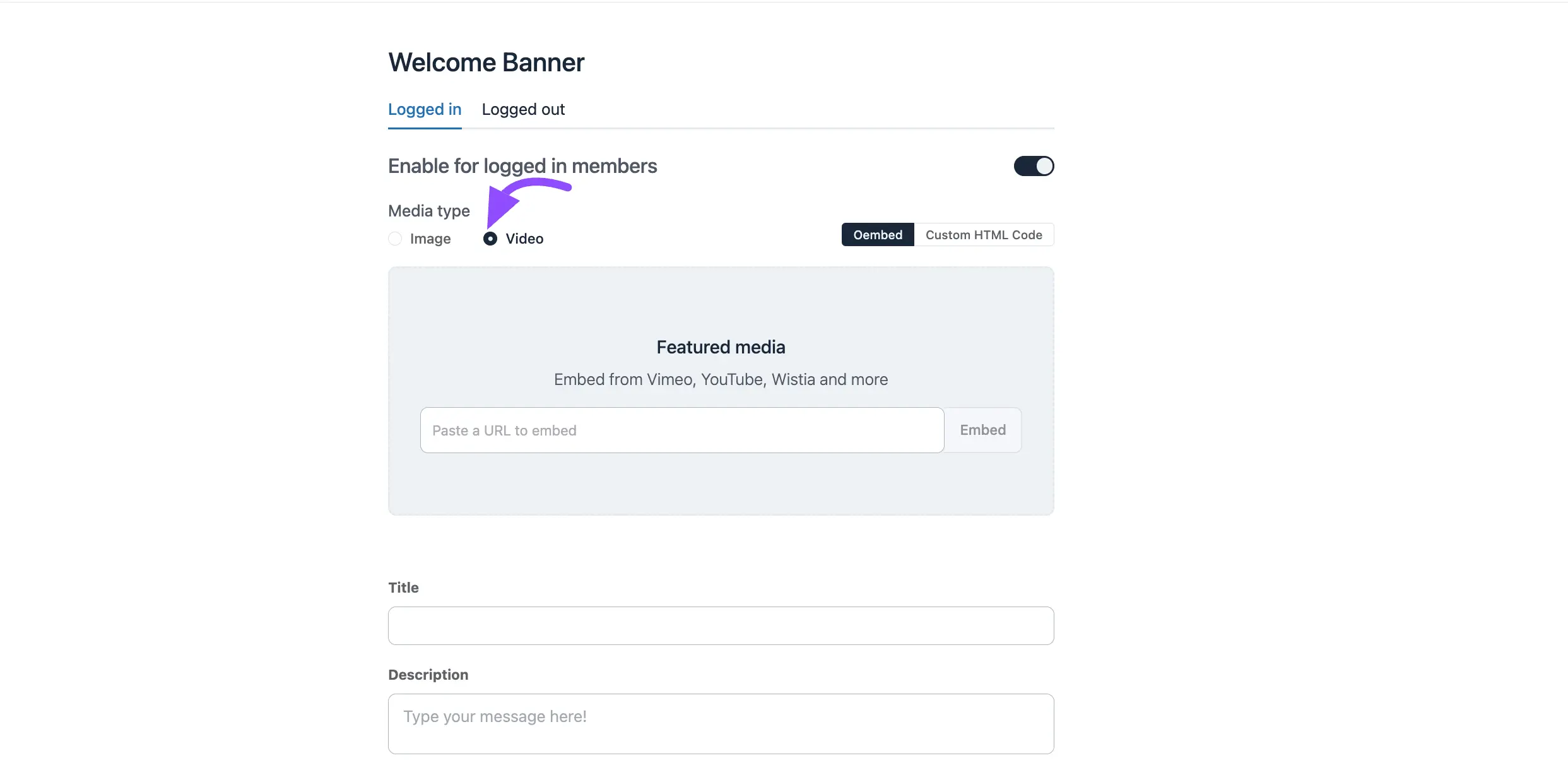
Title: Add a title for your banner here.
Description: Add a short description for the banner.
Call to Action (CTA): Click on the + Add Button to include a call to action button. You can include multiple buttons here.
Button Label: Enter the text for the button (e.g., "Learn More").
Button Link: Add a URL that the button will open.
Button Type: Choose a style from the dropdown (Primary, Secondary, Text, Link).
Open in New Tab: Select Yes to open the link in a new tab or No to open it in the same tab.
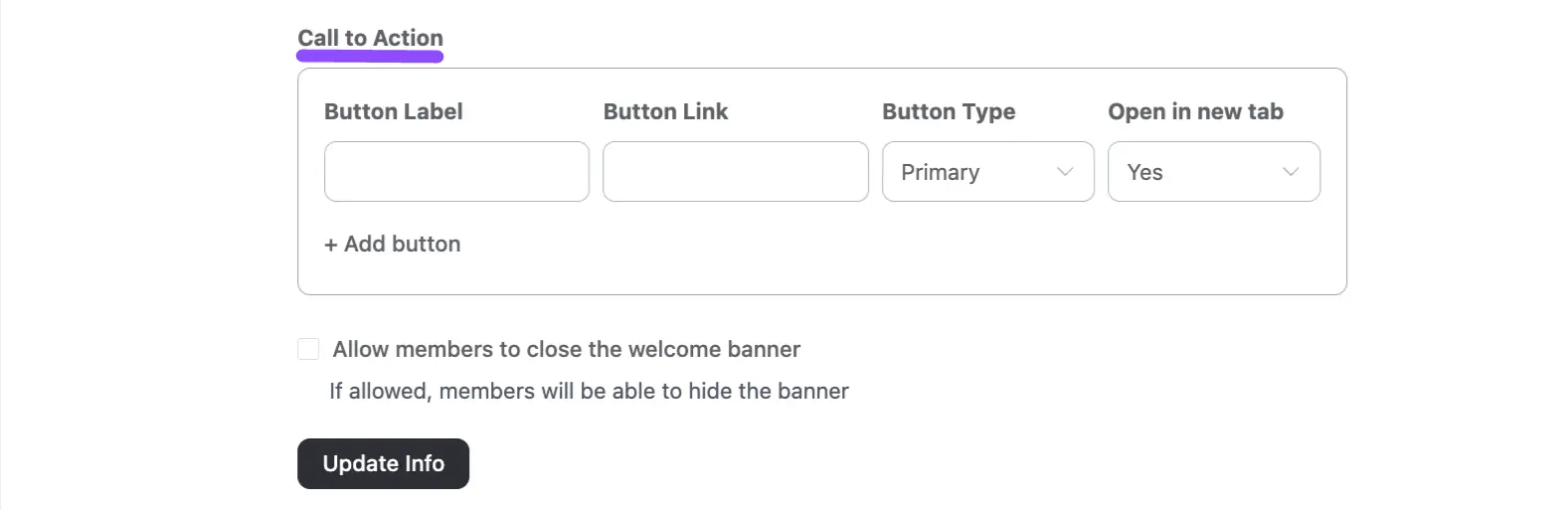
Allow members to close the welcome banner: Check this box to let members close the Welcome Banner.
After that, click the Update Info or Save Changes button to apply all your changes.
Preview and Manage the Banner
This Welcome Banner will be displayed on your feed like the screenshot below.
Preview: Copy the Welcome Banner link and paste it into a new browser tab to view the banner.
Hide the Banner: You can use the three-dot button to hide the banner.
Set Up for Logged-Out Users
To create a banner for logged-out users, select the Logged-Out option in the popup. Follow the same steps as for logged-in members to customize the banner.
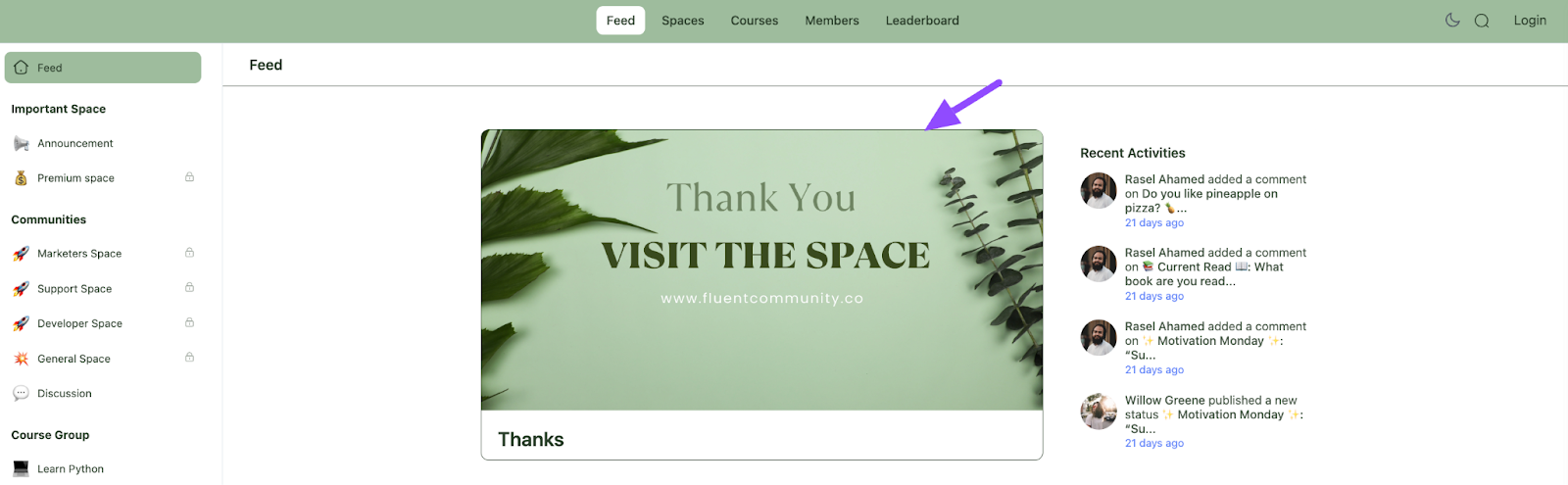
You will see the logged-out banner like the screenshot below.
With this guide, you can easily create Welcome Banners for your community feed.
Banners inside a course
This page covers the banner on the global feed. Courses have their own separate banner, split by Enrolled and Not Enrolled visitors instead of logged-in and logged-out — see Course Welcome Banners.
Adding links to the feed
The global feed can also carry its own custom links, added via the Feed Link button. Those are documented alongside the other menu surfaces in Menu Settings.