

Appearance
Privacy Settings
Privacy settings in FluentCommunity allow admins to control who can view specific pages and spaces, ensuring a secure and customized experience. This guide explains how to access and manage these settings for your community.
Accessing Privacy Settings
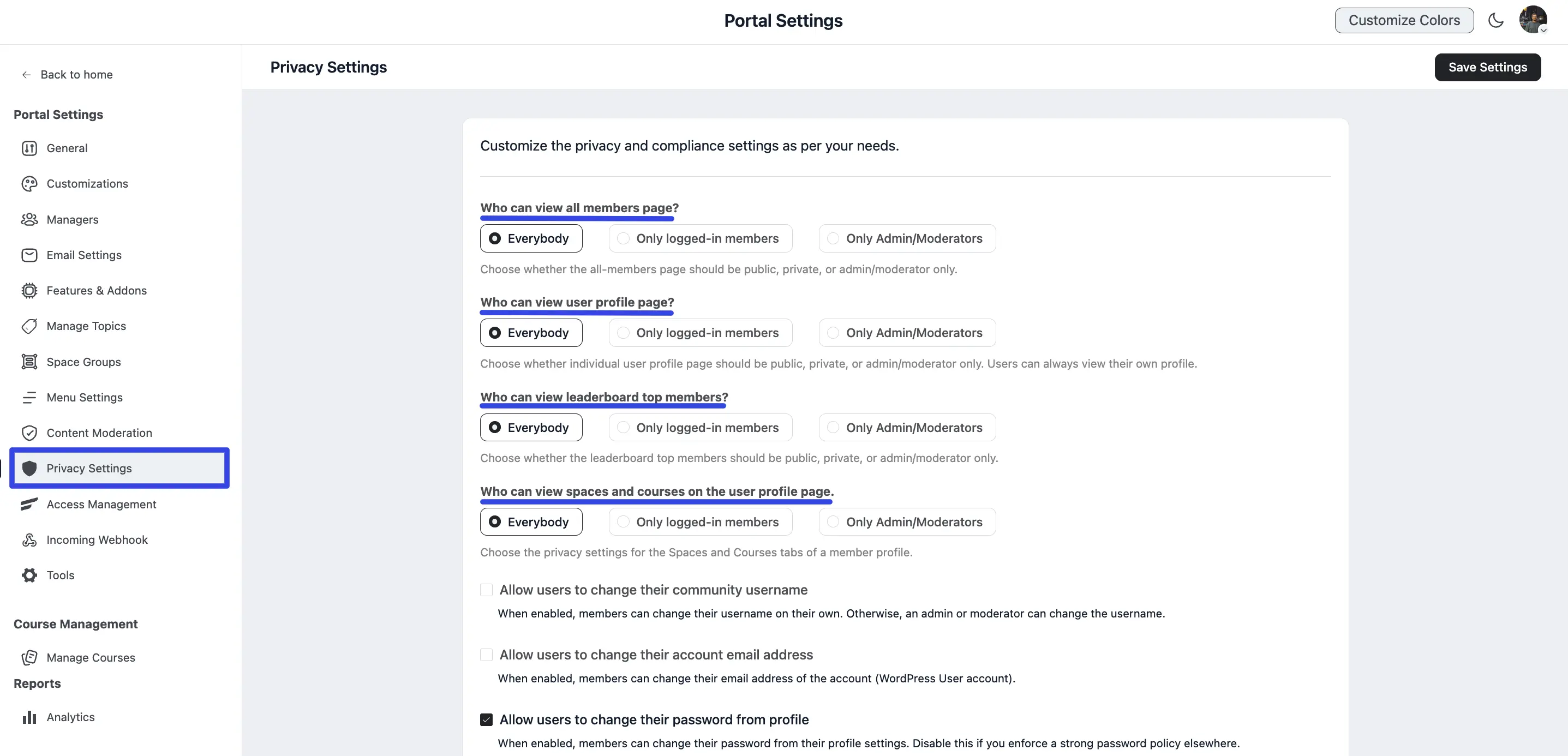
Navigate to the FluentCommunity Settings tab located in the bottom left corner of the dashboard. Click on Privacy Settings to manage your community's privacy preferences.
Visibility Permissions
These options control who has access to view various parts of your community. For each, you can select from Everybody, Only logged-in members, or Only Admin/Moderators:
Who can view all members page? Determines who can access the main member directory list.
Who can view user profile page? Controls the visibility of individual member profile pages.
Who can view leaderboard top members? Sets the visibility for the community leaderboard and its top-ranked members.
Who can view spaces and courses on the user profile page? Controls the privacy of the Spaces and Courses tabs shown on a member's profile.
NOTE
Users can always view their own profile, regardless of the option chosen for "Who can view user profile page?" Every notification and outgoing email also shows a member's public community profile name, not their WordPress account name from registration, so no one's legal name is exposed to other members.
Member Account Permissions
Admins can decide which account details members are allowed to manage on their own:
Allow users to change their community username: When enabled, members can update their username; otherwise, only an admin or moderator can make this change.
Allow users to change their account email address: Enabling this allows members to update their WordPress user account email directly.
Allow users to change their password from profile: When enabled, members can change their own password from their profile settings. Disable this if you enforce a strong password policy elsewhere (for example, through SSO).
Allow users to deactivate their account directly from their profile settings: This gives members the option to deactivate their own accounts through their personal profile settings.
System and Profile Configuration
- Automatically login the user to the portal from email notification links: This feature uses secure, signed URLs to automatically log users in when they click a link in a notification email.
Note
For security, users with post edit access will not be logged in automatically.
Use Gravatar Photo Service for default user photo: When enabled, Gravatar (a built-in WordPress feature powered by WordPress.com) automatically fetches user avatars based on their email address.
Sync Community Profile with WordPress User Data: Enabling this ensures that any updates to a user's community profile automatically sync with their WordPress user data. Disable this to prevent automatic syncing — enabling it is recommended.
Show last activity of a user on the profile card: When checked, the user's most recent activity time will be visible on their profile card. If unchecked, this information is only visible to admins and moderators.
Do not send emails to contacts marked as Bounced, Complained, or Spammed in FluentCRM: When enabled, community notification emails skip any member whose FluentCRM contact is marked Bounced, Complained, or Spammed, protecting your sender reputation. Requires FluentCRM to be connected.
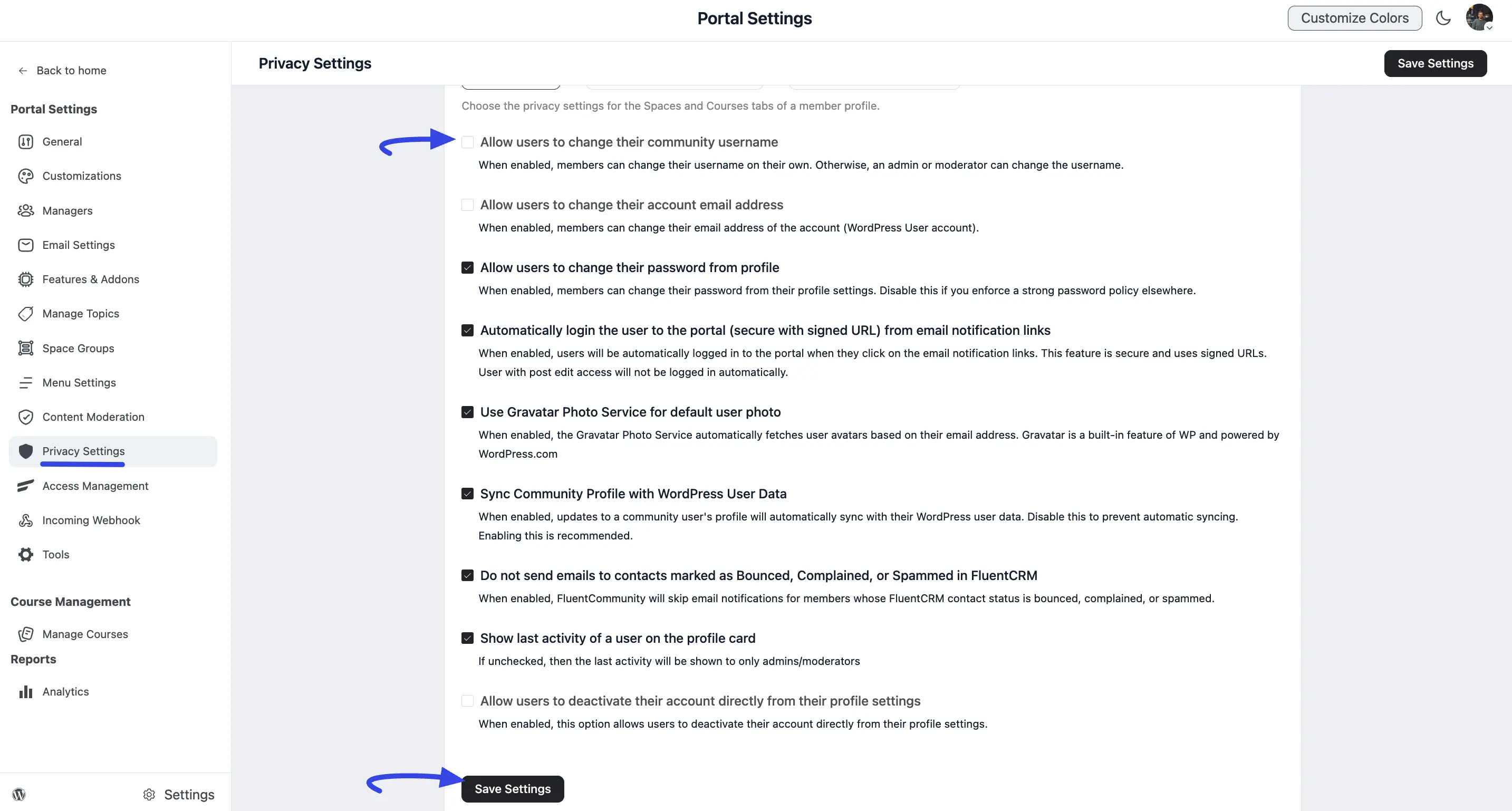
After you've configured all your privacy preferences, remember to click the Save Settings button to proceed.
So, now you can ensure the privacy and security of your community while providing flexibility for admins and members.