Appearance
Creating & Managing Polls
Polls are a quick way to connect with your community and gather their feedback. FluentCommunity lets you create polls right from your feed and collect valuable insights from your members in just a few clicks.
Use Case: You're planning your next live workshop and can't decide on a topic. Post a poll asking members to vote between three options, set an end date, and let the community shape your content calendar for you.
How to Create a Poll from the Global Feed
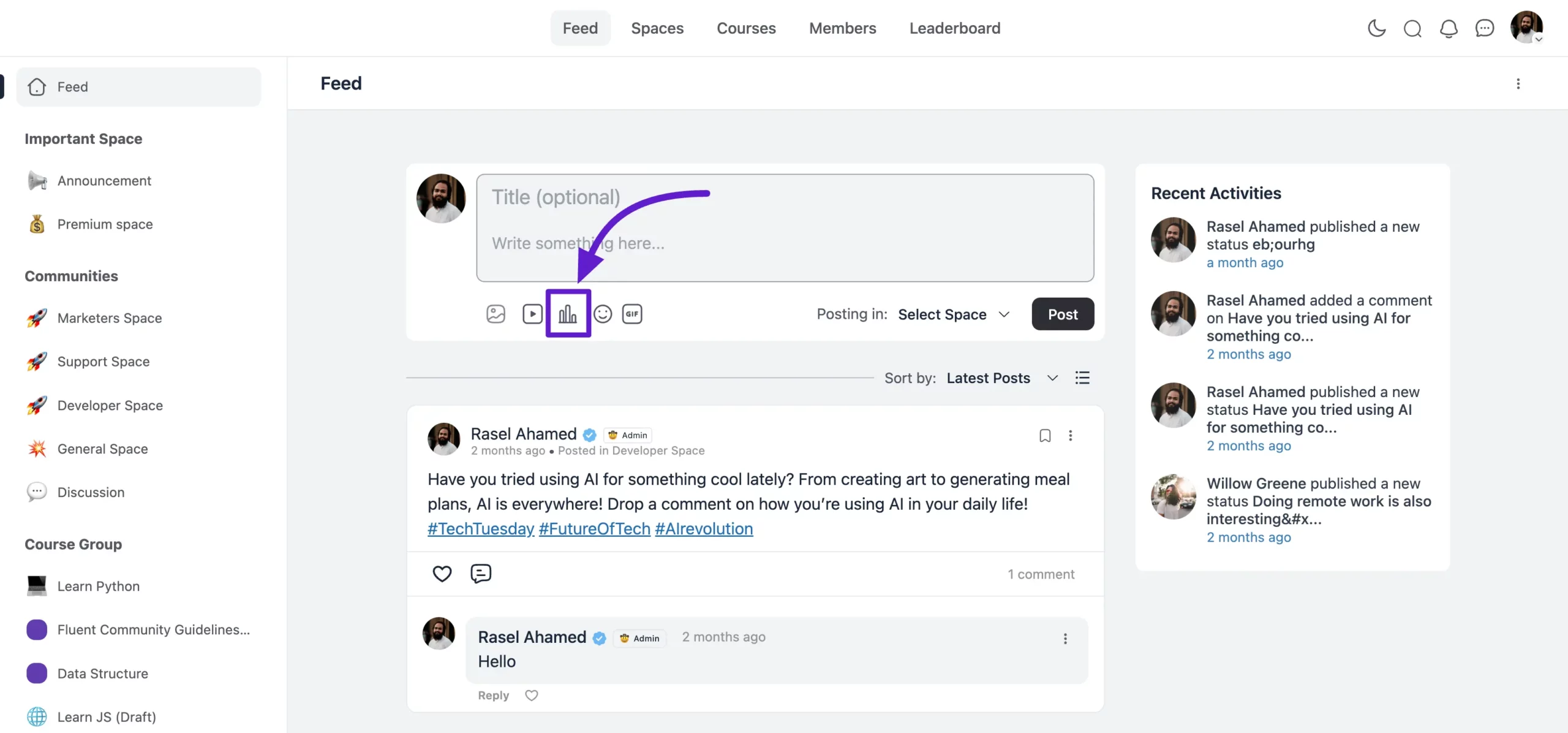
- From your FluentCommunity dashboard, open the Global Feed.
- Click the postcard where you normally create posts.
- In the options that appear, click the Poll icon to open the poll creation features.
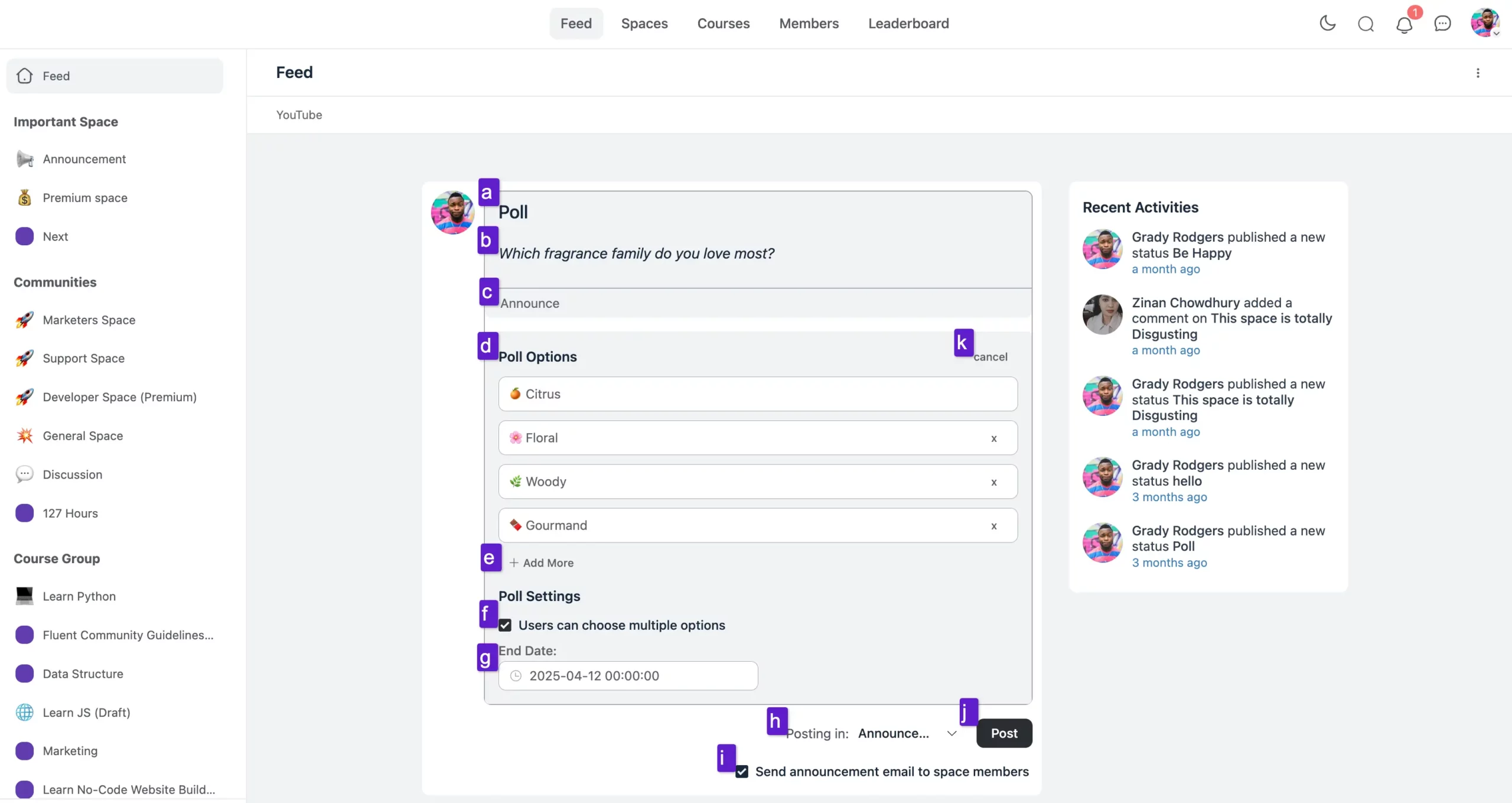
Configure Your Poll
- Topic Section: Give your poll a topic name.
- Subject Section: Enter your poll question or any text content you want to share.
- Topic: If you're creating the poll from within a specific Space, a Topic Add button lets you attach a topic you've previously saved for that Space.
- Poll Options: Add as many poll options as you like. To remove one, click the cross (X) icon next to it.
- Add More: Click the Add More button to add another option.
- Poll Settings: Check the User can choose multiple options checkbox to let members select more than one answer.
- End Date: Set how long the poll stays open. Click the date field and pick your desired date from the calendar.
- Select Space: Choose which Space to post your poll in. This option appears only when you create a poll from the Global Feed — it won't show when you start from within a specific Space.
- Send announcement email to space member: Check this box to email every member of the selected Space when the poll goes live, so no one misses the chance to vote.
- Post: Click the Post button to publish your poll.
- Cancel: Click Cancel to discard the poll.
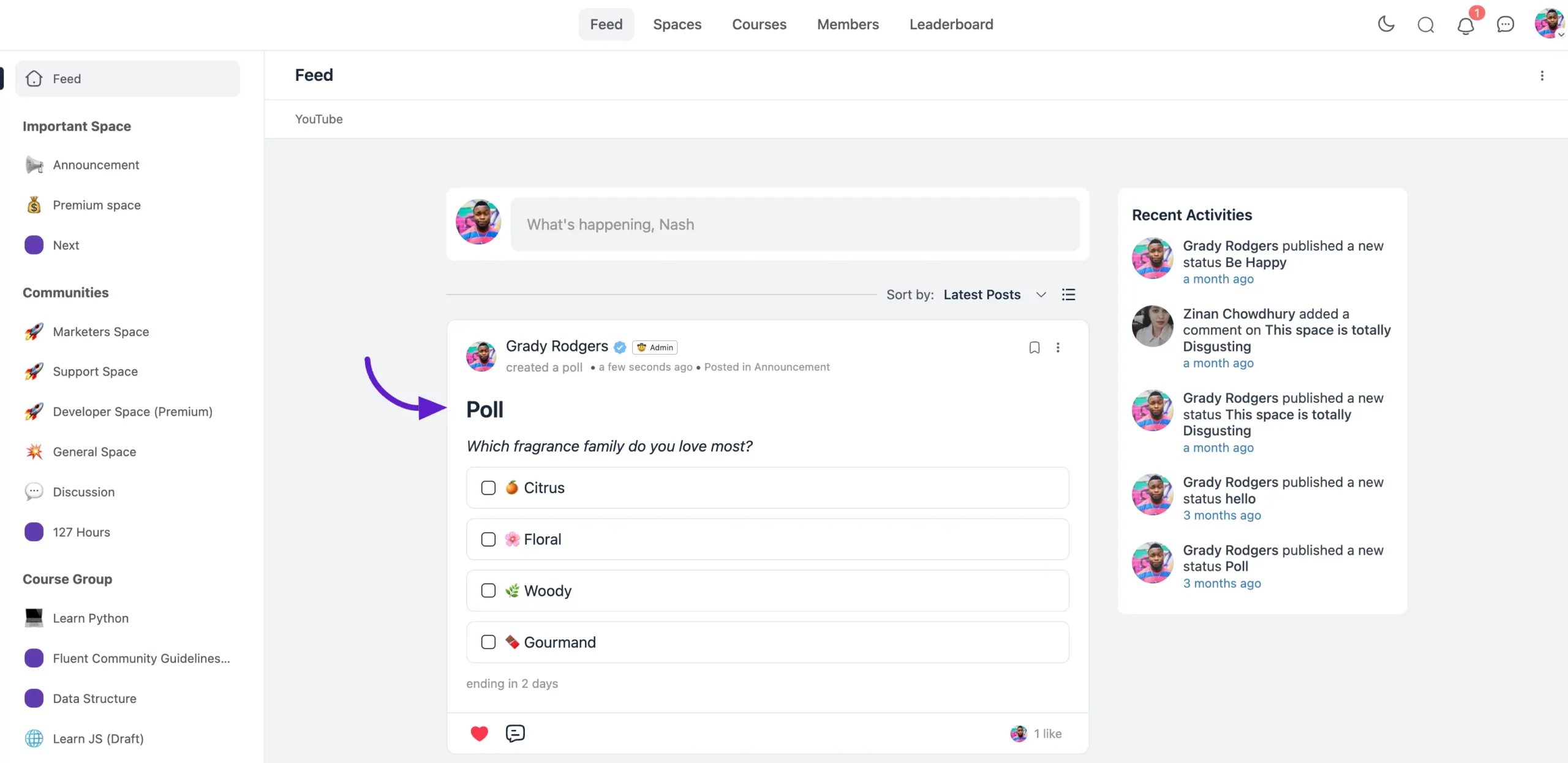
Poll Preview
Once you post the poll, it appears in the feed like this.
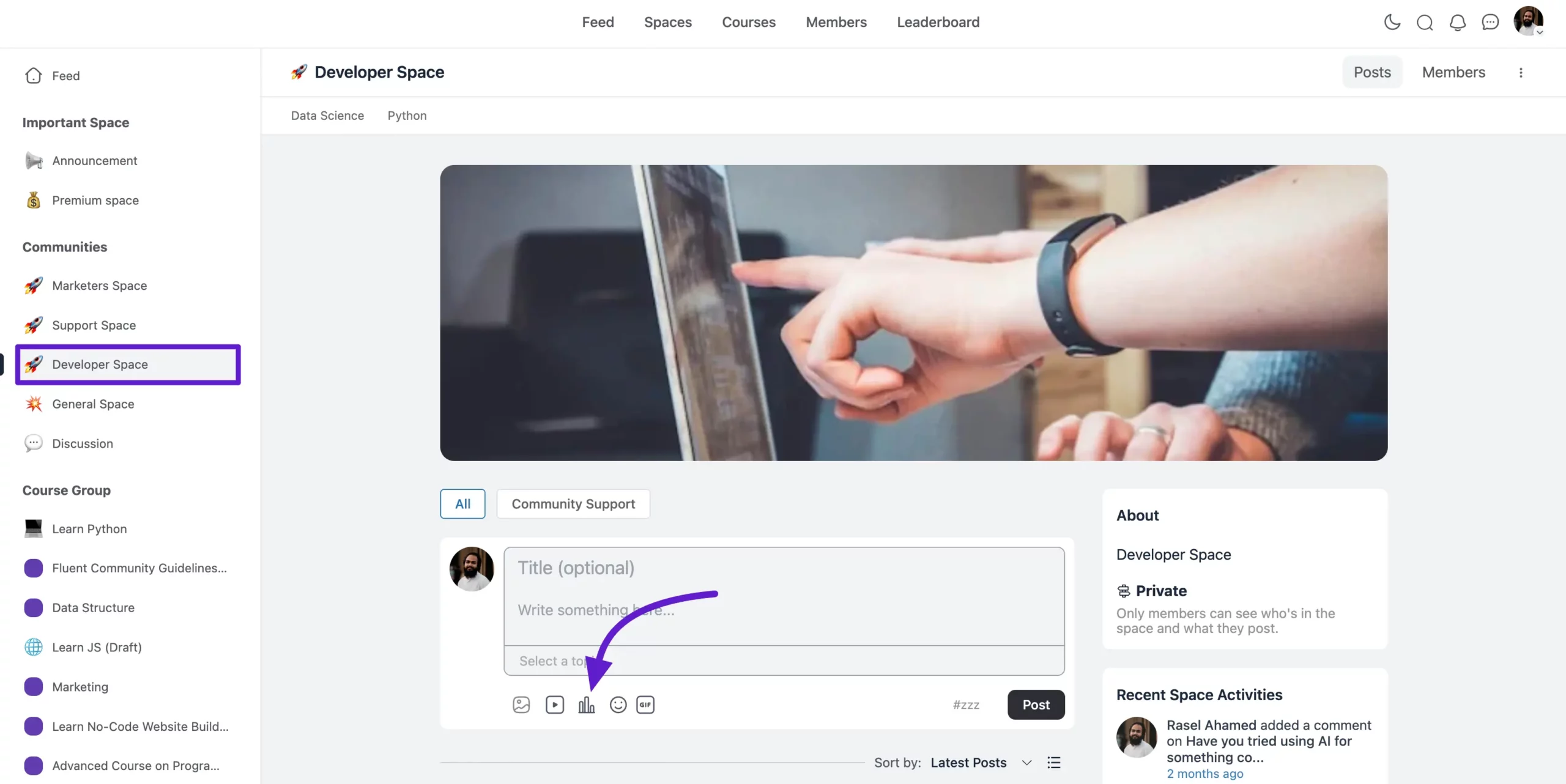
How to Create a Poll from a Space
You can create a poll from a specific Space in the same way. Head to the Space where you want the poll, click the Poll button, and configure the rest of the settings exactly as above.