Appearance
Sitemaps & SEO
A sitemap works like a roadmap for your website, helping search engines like Google, Bing, and Yahoo find and index your content more easily.
FluentCommunity Pro includes a built-in Sitemap Configuration tool with support for Google-recommended SEO schemas and structured data, so your spaces, courses, and discussions can appear in search results without a third-party SEO plugin.
Use Case: You've created several public spaces and courses that you want to rank in Google. By generating a sitemap and submitting it to Google Search Console, you give search engines a direct roadmap to all the indexable content in your community.
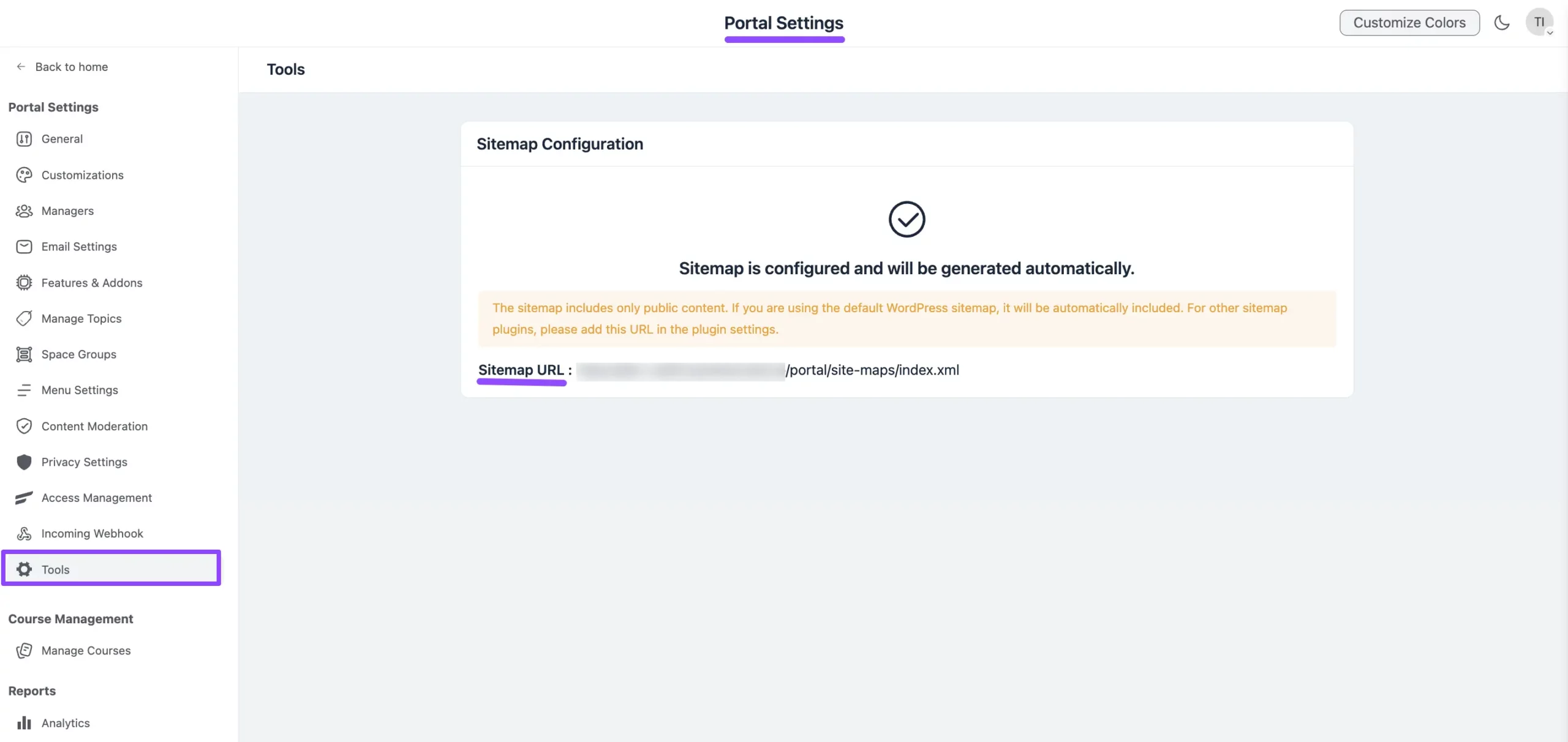
Generating the FluentCommunity Sitemap
The sitemap is generated and updated automatically by FluentCommunity, so no manual setup is required. You just need to know where to find it and how to use it.
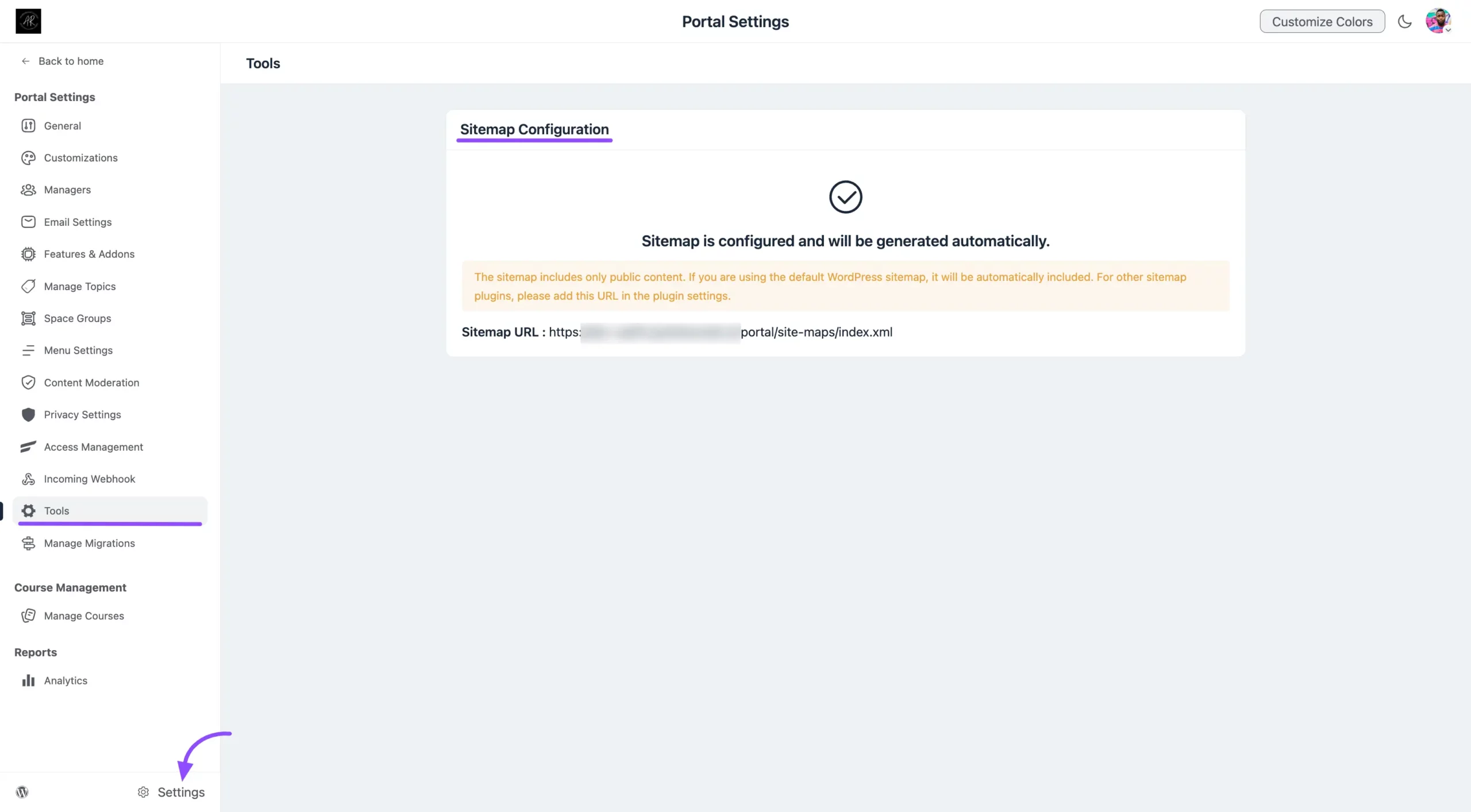
How to Find the Sitemap Tool
- Navigate to FluentCommunity → Settings.
- Click the Tools tab.
- Open the Sitemap Configuration page.
What the Sitemap Includes
To protect your members' privacy, the sitemap includes only public-facing content:
- Public Spaces
- Public Courses (Pro)
- Public Posts & Discussions
- Public Space Pages (Pro) — published pages set to Everyone who can view the space, inside public Spaces. See Space Pages (Pro).
- Member Profiles (only if the member's profile visibility is set to public)
NOTE
All Private and Secret content is automatically excluded from the sitemap to protect your members and any sensitive data.
How It Works
FluentCommunity generates a standard XML file at a dedicated URL, which looks something like this:
https://yourdomain.com/portal/site-map/index.xmlThis URL is fully compatible with all major search engines and SEO tools.
Using Your Sitemap
Once the sitemap is generated, you can use its URL in a few ways:
- Submit to search engines: Copy the sitemap URL and submit it directly to Google Search Console and Bing Webmaster Tools.
- Use with SEO plugins: If you use Rank Math or Yoast SEO, find the setting for Additional Sitemaps or External Sitemaps and paste your FluentCommunity sitemap URL there. This tells your SEO plugin to include your community content in its main index.
Troubleshooting: If your sitemap appears to be missing content, the most common cause is caching. Clear all caches from your caching plugins, server, and CDN. Also confirm that the spaces or courses you expect to see are set to Public.
Canonical URLs for Spaces, Courses, and Lessons
FluentCommunity automatically adds a canonical tag (<link rel="canonical">) to every Space, Course, and Lesson page. This tells search engines which URL is the authoritative version of that content when it's reachable from more than one address, for example, a lesson linked both from its course and directly, preventing duplicate-content issues and keeping ranking signals consolidated on a single URL.
Canonical tags are generated automatically alongside the sitemap, there's nothing to configure.
Server-Rendered Pages for Search Engines (Pro)
The community portal is an app: the page shell loads first and the content is filled in by JavaScript a moment later. Google runs JavaScript when it crawls, but many other visitors don't — Bing, AI crawlers such as GPTBot, ClaudeBot and PerplexityBot, and the link-preview bots used by Slack, WhatsApp, X and LinkedIn all read the raw HTML only. To them, a post page used to look like an empty container with a title.
FluentCommunity Pro now renders the content of your most important public pages on the server, so the finished HTML already contains it before any script runs. Nothing changes for members — the app takes over as soon as it loads — but crawlers and preview bots now receive real content:
| Page | What is rendered for crawlers |
|---|---|
| A single post | The post itself — title, body, author, reactions and the first comments. The app also skips one request on load, so the post appears a little faster for everyone. |
| A Space's post listing | The list of posts in the Space, with a page 2, 3… trail so a crawler can reach every post from the Space's own URL. Each listing page gets its own canonical URL. |
| A course landing page | The course title, description and curriculum for a public course, or its lock screen for a private one, along with the price where the course is paid — plus structured data that makes the course eligible for rich results. |
Here is what a search engine sees on a public post page, with JavaScript switched off:
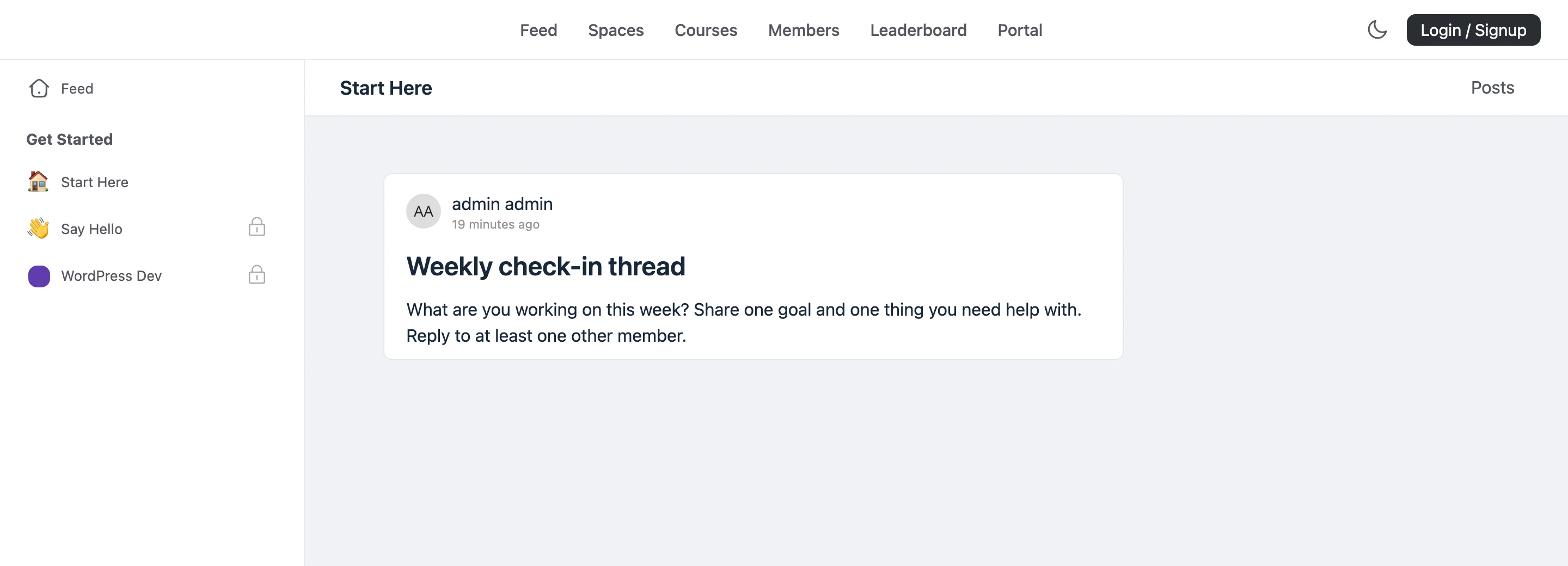
When it applies. Server rendering runs only for logged-out visitors and only when your Portal Access is set to Everyone. Logged-in members always get the personalised app, and content from private or secret Spaces is never rendered this way. Because nothing member-specific is included, the rendered pages are safe for caching plugins and CDNs.
✨ Note: There is nothing to turn on — it works as soon as FluentCommunity Pro is active and your portal is public. If your portal is set to Only Logged In Users or Only Selected User Roles, there is no public content to render.
💡 Tip: To check it yourself, open a public post in a private/incognito window, view the page source, and search for the post title — you'll find the full text in the HTML.
Creating an XML Sitemap
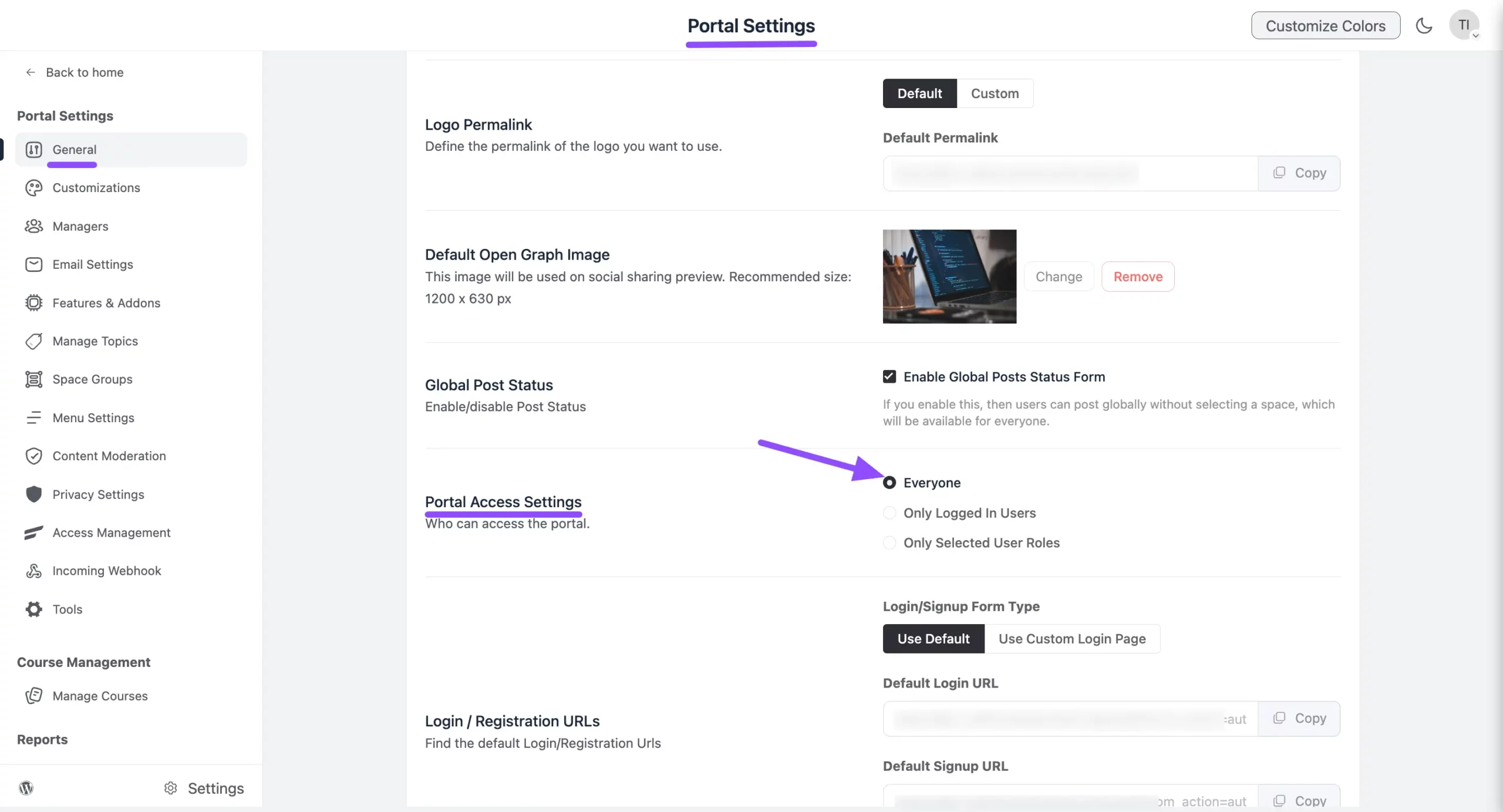
For your community content to be indexed, your portal must be publicly accessible. If your portal is private, search engines can't crawl it.
Make Your Portal Public
Go to the FluentCommunity Dashboard and scroll down to Portal Access Settings. Under Portal Access, select the Everyone option. Once your portal is public, your sitemap becomes active and your site is ready to be indexed by search engines.
Configure the Sitemap
Navigate to the Tools section under Portal Settings. Here you'll see that your portal's sitemap is already created and configured automatically. You can view it from the Sitemap URL, which is now ready and easily indexable by Google.