

Appearance
Spaces & Group Chat
Welcome to the core organizational feature of your community: Spaces. A Space is a self-contained hub where you can bring members together to focus on a specific topic, project, or interest group.
Think of Spaces as the rooms of your community house. You can create different rooms for different purposes, each with its own content, members, and privacy settings.
What You Can Do with Spaces
- Structure Your Community: You can create an unlimited number of Spaces to organize conversations. For example, you could have a "General Discussion" space, a "Product Feedback" space, and a private "Staff Only" space.
- Control Access: Every Space can be set to Public, Private, or Secret, giving you precise control over who can see and interact with the content inside.
- Enable Real-Time Chat: For more dynamic conversations, you can enable a dedicated Group Chat room inside any Space, allowing members to communicate instantly.
In the following articles, we will walk you through how to create and manage every aspect of your Spaces.
Unread Badges in the Sidebar
The sidebar shows an unread count next to each space a member has joined. The count tracks when the member last opened that space, and new posts raise it live as they arrive, with no reload.
- Badges appear only for joined spaces.
- A member's own posts never count as unread.
- Duplicate memberships do not inflate the number.
- Posts older than 14 days never count as unread, so a quiet space does not keep a badge forever.

Tip: Developers on large sites can lower the 14-day window with the
fluent_community/unread_badge_max_daysfilter.
Inside a Space: the Activity Feed
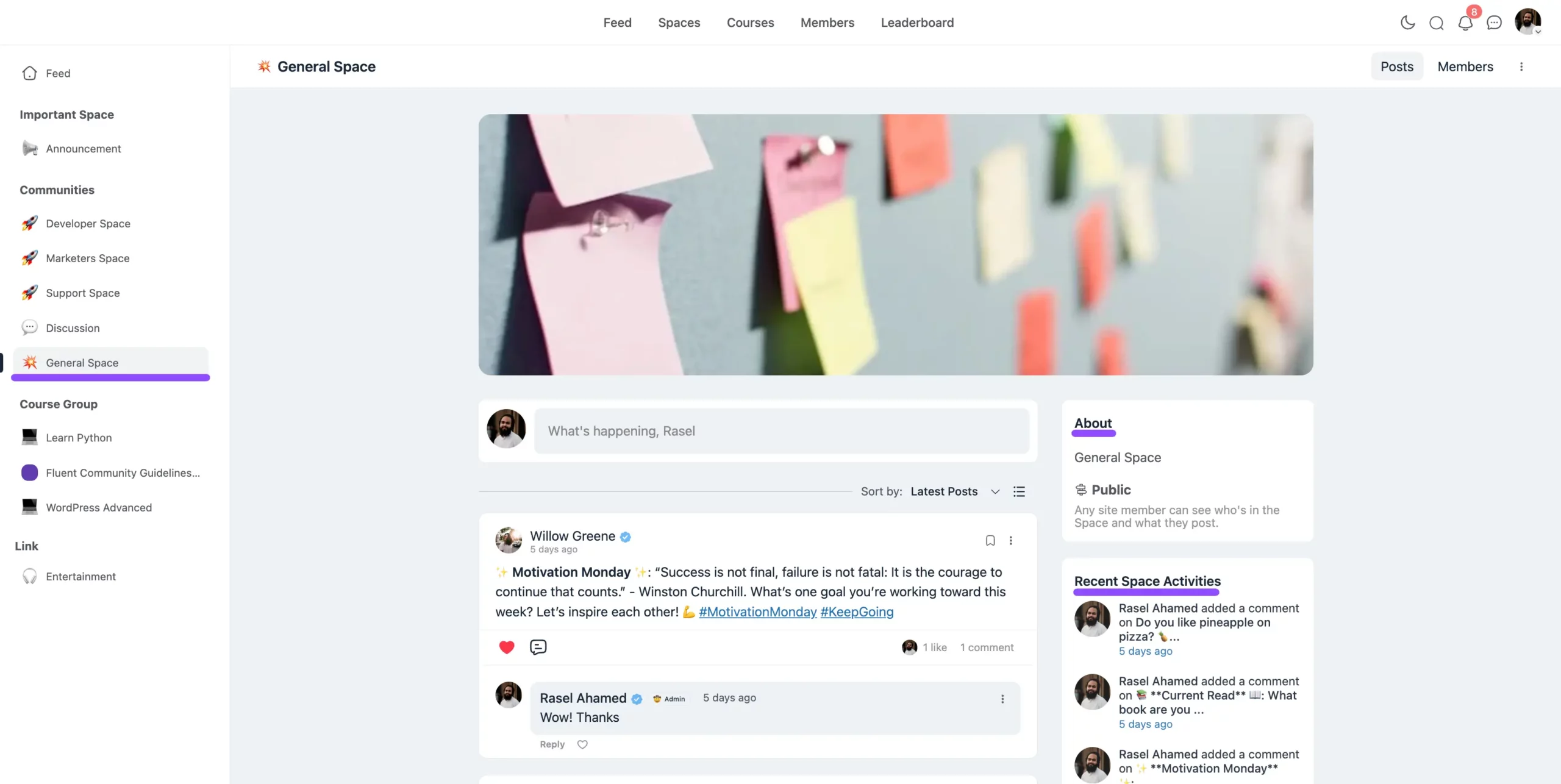
Once a member opens a Space they've joined, the Activity Feed is what they land on — a chronological list of everything happening inside it. Members can post updates, comment and react, vote in polls, and filter the feed down to a specific kind of content.
Two things worth knowing about the feed that aren't obvious at a glance:
- Mentions & Hashtags: Members use
@mentionsto tag someone directly and hashtags to categorize a post so it can be found alongside related content. - The right sidebar: An About section describes the Space, and Recent Space Activities lists its latest posts and activity. Both are toggled in Space Settings & Privacy.
To change how the feed is laid out, see Feed Views. To change the order posts appear in, see Feed Sorting.