

Appearance
Using Emojis & Gifs (Pro)
Bring more personality and fun to your community conversations by using emojis and animated GIFs. FluentCommunity integrates directly with an emoji picker and the Giphy service to make your posts and comments more visual and engaging.
Using the Emoji Picker
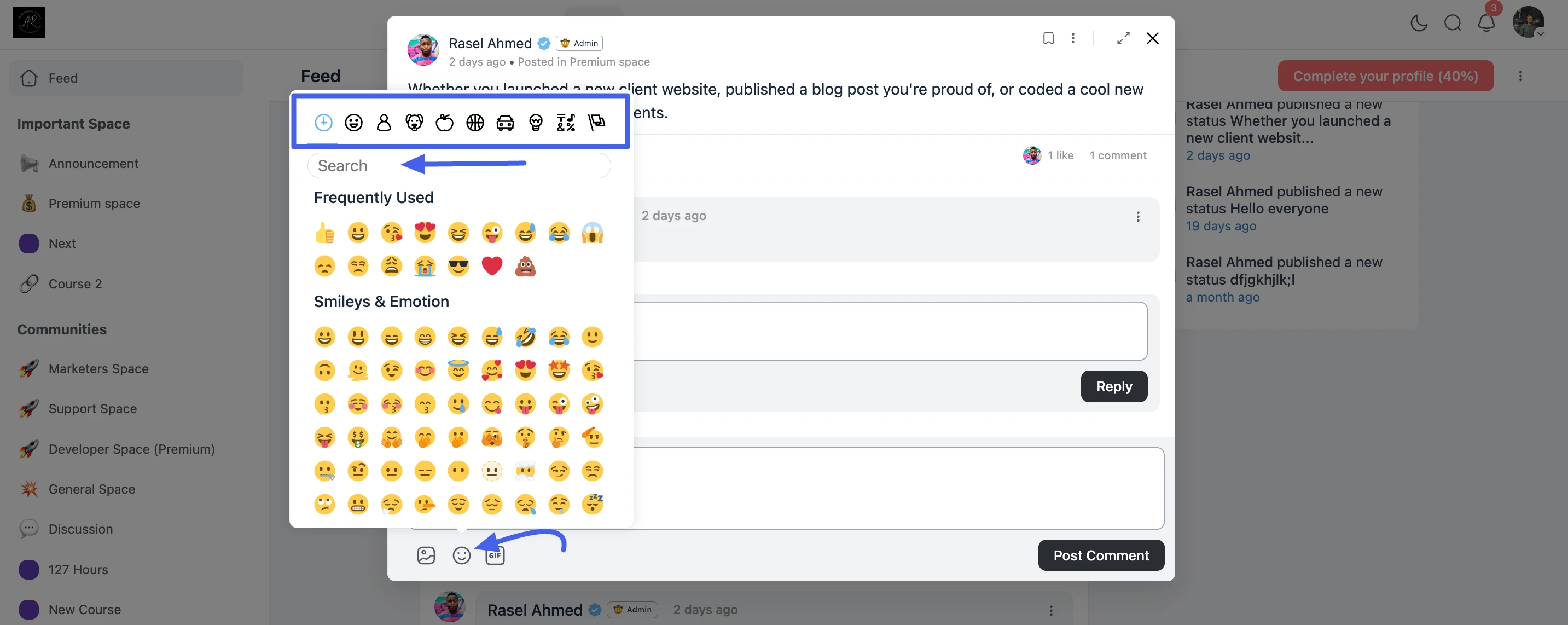
You can add emojis to any post, comment, or private chat message to express yourself more clearly.
- Locate the Icon: While writing in any text editor or messaging box, look for the smiley face icon.
- Open the Picker: Click the icon to open the emoji interface.
- Browse or Search: You can browse through various categories or use the search bar to find the perfect emoji for your message.
- Insert: Simply click on an emoji to insert it directly into your text.
Using Giphy for Animated GIFs
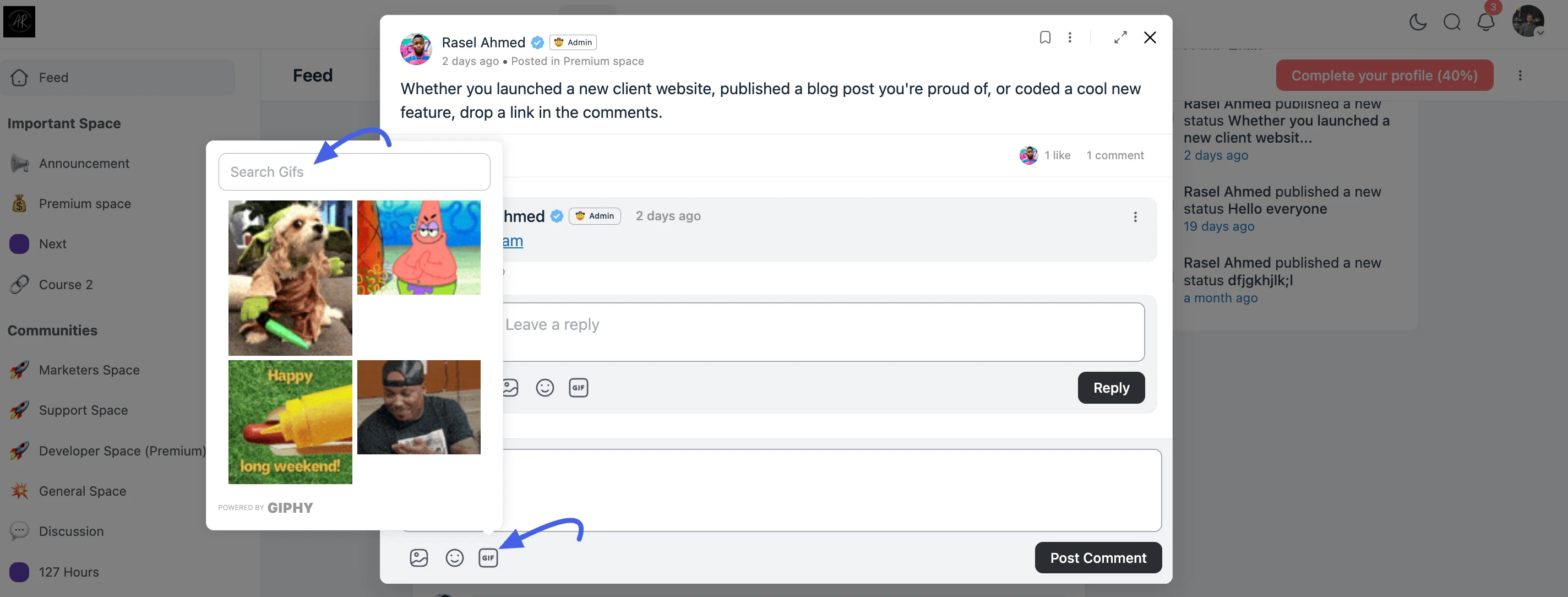
Animated GIFs are a great way to add humor and motion to your community discussions.
- Find the GIF Icon: In the post or comment editor, look for the GIF icon located next to the emoji picker.
- Search for Content: Click the icon to open the Giphy integration window and type a keyword (e.g., "celebrate" or "thank you") into the search bar.
- Select and Share: Browse the search results and click on the GIF you want to share. It will be automatically embedded into your post or comment.
Enabling Emoji and Giphy Modules
As an administrator, you must activate these modules from the backend settings before members can use them.
Access Features & Addons: Navigate to Portal Settings and select the Features & Addons tab from the left sidebar.
Enable Emoji Module: Locate the Emoji Module and click the Settings button. Ensure it is toggled to Enabled to allow a personal touch with emojis in articles, posts, or comments.
Configure Giphy Module: Locate the Giphy Module and click its Settings button. Enter your Giphy API Key, check Enable Giphy Module, and click Save.
✨ Note: The Emoji and Giphy integrations are Pro features. An administrator must have these modules enabled in the FluentCommunity settings for the icons to be visible. If you do not see these options, please contact your site administrator.